One table instead
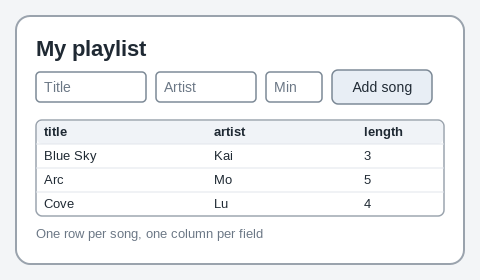
Rebuild the playlist with a table: one row per song, a column for each field (title, artist, length). Each song's details live together in one row, so adding or removing a song can't split them up. A Table object shows the table, and clicking a row removes that song.
Spreadsheets, school timetables and music libraries all keep data the same way: one row for each thing, a column for each detail.
Last lesson, a song's title and artist were linked only by sitting at the same place in two lists. Today they live together in one table:
- Each row is one song: a record.
- Each column is a field: title, artist, length. Every row has the same fields.
- A field holds text or a number. length is a number, so you can add lengths up or sort by them later.
Removing a song now removes its whole row, so nothing can get out of step.
How this lesson works: See it, Build, Check, Make it yours
- See it: Try the finished thing first, so you know what you are building.
- Build: Watch the short clip, then do the steps. Your app carries on from the step before.
- Check: A quick check that the idea has stuck.
- Make it yours: Change your app on purpose, then try it on someone.
Make your prediction first. Help opens once you've locked it in.
Try the finished app
This is the app you'll build, open on the Run tab. Add a song, then click a song in the table to remove it. On the left, under Tables, the rows the app has now show under the table.
Build 1: make the table
- On the left, under Tables, type Songs and press +. A new table has one field, name.
- Click name at the top of its column, choose Rename, and call it title.
- Press + at the end of the field names to add a field. Call it artist. Add one more called length.
- Click length, and choose Number: lengths are numbers, not text.
- Press + Row and type a song: title, artist, minutes. Press Tab to move along. Add a second song.
A table Songs with the fields title, artist and length.
Run your program. This ticks when your code does all of the above.
Build 2: show it on the screen
On the Design tab, click the empty table on the screen (SongTable). In Properties, set Shows table to Songs. Your two songs appear, one row each. Columns to show lets you hide a field, but keep all three for now.
SongTable shows the Songs table.
Run your program. This ticks when your code does all of the above.
Build 3: add a row
- Add an event: AddButton is clicked.
- Add the action Tables, Add a row to table, table Songs. There's one box for each field.
- Fill them in: title
TitleInput.text, artistArtistInput.text, lengthint(LengthInput.text). - Run it and add a song. Watch it arrive at the bottom of the table.
When AddButton is clicked, a row is added to Songs with the title, artist and length that were typed.
Run your program. This ticks when your code does all of the above.
Build 4: click a row to remove it
- Add an event: SongTable, An item in SongTable is clicked. ClickedIndex is the number of the clicked row.
- Add the action Tables, Remove row … from table: row
ClickedIndex, table Songs. - Run it and remove the middle song. One action, and the whole song is gone.
When a row of SongTable is clicked, that row is removed from Songs.
Run your program. This ticks when your code does all of the above.
Check: rows and fields
Make it yours: a genre field
This screen has a new Genre box.
- Add a field genre to Songs (the + after the field names). It's text.
- Open the AddButton event's Add a row action. It has a new box for genre: fill it with
GenreInput.text.
Compare that with last lesson's third list: one new field, and nothing else to keep in step.
Ask someone to add three songs without any help from you. Watch where they pause. Labels, an example in a box, or a message after adding are all good fixes.
Songs has a genre field, and Add a row fills it from GenreInput.
Run your program. This ticks when your code does all of the above.
Lesson done. You've finished every step you need.
- Make a table with fields of the right type, and add rows to it.
- Show a table with a Table object and add a row from what the user types.
- Explain why a table keeps each record's details together.
For teachers
Students rebuild the playlist as a table: Songs, with the fields title, artist and length (a number field), made in App Builder's sidebar spreadsheet. A Table object shows it; Add a row takes one value per field; clicking a row removes it with Remove row ClickedIndex. The Check traces row numbers after a removal and asks why a table can't split a song. About 60 minutes.
Open the teacher guide: answers, solutions, slides and a worksheet.
Students will be able to
- I can make a table with fields of the right type, and add rows to it.
- I can show a table with a Table object and add a row from what the user types.
- I can explain why a table keeps each record's details together.
Before class
Tables are an App Builder Level 4 feature; these lessons open App Builder at Level 4.
A table is a list of records: each row is one record, each column a field. Field types matter: length is a number so it can be added up (next lesson) and sorted by size (lesson 5). int(LengthInput.text) turns the typed text into a number; a number field also accepts text that is a number.
Removing a row renumbers the rows below it, as a list does.
Running the lesson
- Before Build 1 (whole class): draw the two lists from last lesson, then redraw them as one table. What's the same, what's better?
- Build 1: checkpoint: everyone's Songs table has three fields and length shows 123 (number).
- Check: act it out: three students hold cards for three rows; remove the middle one, and the third steps up.
The hard part (on purpose)
Making the table: rename the first field, add fields, change length to Number. The sidebar is narrow; the field's own menu (click its name) does rename, type and delete.
When students get stuck
- The Table object says Choose a table in Properties. Ask: Which table does SongTable show? Fix: Click SongTable on the Design tab and set Shows table to Songs.
- Add a row shows a box for name, not title. Ask: Did the first field get renamed? Fix: Click the field's name in the sidebar, Rename, and call it title; the action's boxes follow.
- A message says length holds numbers. Ask: What was typed in the Minutes box? Fix: Type a number such as 4, or use int(LengthInput.text).
Stretch and support
Stretch: Use Columns to show to hide length on the screen. Does the table still keep it?
Support: Make the table together on the projector; pairs build the events.
Where it leads
Next: Records and fields: read one field of a row, add up a column, find the longest song.
What each step is for
- Try the finished app: Using the finished app first shows rows moving as a whole: add one, remove one, and each song keeps its details.
- Build 1: make the table: Making the table by hand, field by field, shows its shape before any event touches it: the same fields in every row, each with a type.
- Build 2: show it on the screen: The Table object shows a table by itself, a column per field, so the screen keeps up with the table with no extra events.
- Build 3: add a row: Add a row takes one value for each field, so a new song arrives as a whole record and lands at the end of the table.
- Build 4: click a row to remove it: Removing row ClickedIndex takes the whole record away, so one action does what needed two in the parallel lists.
- Check: rows and fields: Tracing row numbers after a removal and reading one field of one row check the two new ideas: rows renumber, and each row keeps its own fields.
- Make it yours: a genre field: Adding a field shows how a table grows: one new column, and Add a row gets one more box, instead of a whole new list to keep in step.