A water tracker
Build a water tracker with a goal: add a glass, reset the day, and see a message and a progress bar. An Every tick event keeps the display in step without setting the text in every button's event. A condition that isn't a trigger, such as comparing a variable, is checked every tick, and an action only waits for a sub-event's condition if it sits inside that sub-event.
Most apps show the same numbers in several places. Keeping them all up to date by hand in every button gets messy fast; there's a simpler way.
In the practice tracker, the Save event changed the total and set the text. That works with one button, but with three or four buttons you'd need a Set text in every one, and it's easy to miss one.
This time you'll use Every tick. App Builder checks the events over and over, about 60 times a second. An Every tick event runs on each of those checks, so it can keep the screen in step with the variables, whatever changed them.
How this lesson works: See it, Build, Check, Make it yours
- See it: Try the finished thing first, so you know what you are building.
- Build: Watch the short clip, then do the steps. Your app carries on from the step before.
- Check: A quick check that the idea has stuck.
- Make it yours: Change your app on purpose, then try it on someone.
Make your prediction first. Help opens once you've locked it in.
Try the finished app
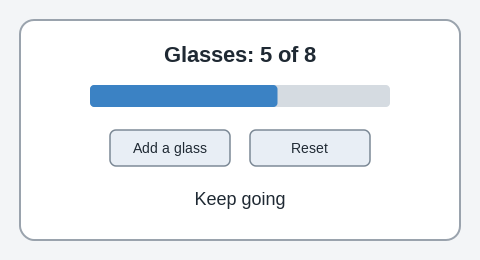
This is the finished app you'll build, open on the Run tab. Under it, the Every tick row keeps flashing: it runs all the time, not just when you click.
Build 1: the display, every tick
The screen is made for you: GlassText, AddButton and ResetButton.
- Under Variables on the left, add Glasses starting at 0, and Goal starting at 8.
- On the Events tab, choose + Add event, + Condition, System, Every tick.
- Add the action GlassText, Set GlassText text to …:
"Glasses: " & Glasses & " of " & Goal
Variables Glasses (0) and Goal (8), and an Every tick event that sets GlassText from them.
Run your program. This ticks when your code does all of the above.
Build 2: the Add button, with a cap
- Add an event: AddButton, AddButton is clicked. Add the action Variables, Add … to variable: 1 to Glasses. Click Add in the preview: the count changes, because Every tick sets the text.
- Now a cap, so it stops at the goal. Click the AddButton event, then its ⋯ button, and choose Add a sub-event. Give the sub-event the condition Variables, Variable … … …: Glasses < Goal. Leave the Add 1 action where it is, on the AddButton event.
AddButton is clicked adds 1 to Glasses, with a sub-event that checks Glasses < Goal (built as set out, slip and all).
Run your program. This ticks when your code does all of the above.
Build 3: Reset, then test
- Add an event: ResetButton is clicked, with the action Set variable … to …: Glasses to 0.
- In the preview, click Add 12 times. What does the screen say? Then click Reset.
ResetButton is clicked sets Glasses to 0.
Run your program. This ticks when your code does all of the above.
Check: did the cap work?
This is the cap you built. Click the line that lets the count pass the goal.
Build 4: fix the cap
Move Add 1 into the sub-event: click the action on the AddButton event and choose Delete, then click the sub-event, choose + Action and add it there. Then click Add 12 times in the preview again.
| When (condition) | Do (actions) |
|---|---|
| ⚡ AddButton is clicked | |
| ↳ Variable Glasses < Goal | Add 1 to variable Glasses |
Add 1 to Glasses is inside the sub-event, and no longer on the AddButton event itself.
Run your program. This ticks when your code does all of the above.
Make it yours: a message and a progress bar
- Message: add a Text and rename it Message. Add an event Variables, Variable … … …: Glasses = Goal, with the action Set Message text to Goal reached!. From the event's ⋯ menu, choose Add an Else below, and give the Else the action that sets it to Keep going.
- Progress bar: add a Box and rename it BarBack: grey, 300 wide. Then add another Box, BarFill, in blue, the same size and in the same place (set X and Y in Properties). The one added later sits on top. In the Every tick event add BarFill, Set BarFill width to …:
Glasses / Goal * 300
A Message that says "Goal reached!" or "Keep going" (an event with Else), and a bar, BarFill, whose width follows Glasses every tick.
Run your program. This ticks when your code does all of the above.
Lesson done. You've finished every step you need.
- Use Every tick to keep what's on screen up to date.
- Say which actions a sub-event's condition controls.
- Make a progress bar from a number.
For teachers
Students build a water tracker with two variables (Glasses, Goal), an Every tick event that keeps the display up to date, Add and Reset buttons, and a cap. The cap is first built the way beginners often write it (Add 1 left on the AddButton event, the check in a sub-event), so it fails at the goal; students find why and move the action into the sub-event. The Make step adds a goal message with Else and a progress bar. About 60 minutes.
Open the teacher guide: answers, solutions, slides and a worksheet.
Students will be able to
- I can use Every tick to keep what's on screen up to date.
- I can say which actions a sub-event's condition controls.
- I can make a progress bar from a number.
Before class
The cap in Build 2 is wrong on purpose: Add 1 stays on the parent AddButton event, so it runs on every click and the sub-event's condition (Glasses < Goal) controls nothing. The Investigate step finds it; the Modify step fixes it by deleting the action and adding it again inside the sub-event (App Builder has no drag between events; the ⋯ menu and + Action do it).
Every tick runs about 60 times a second. Setting text there is fine. Adding to a variable there is not (it would add 60 a second), which is why the exit question asks about it.
The Build step's tick boxes accept the slip on purpose (they check the cap as built); Build 4's tick only comes once Add 1 is inside the sub-event.
Pick any goal and thing to track if water doesn't suit your class (pages read, laps, minutes outside). The app is about counting towards a goal, not health advice.
Running the lesson
- Before Build 2 (whole class, on the deck): the Add event only adds 1, with no Set text. Does the count change? Compare with lesson 1.
- Build 3: everyone clicks 12 times before anyone explains.
- Check: draw the event and its sub-event on the board; circle which actions belong to which.
- Make it yours: work out one bar width together before students build it.
The hard part (on purpose)
The deliberate slip in Build 2 can feel like a trick. Say up front that the build includes one mistake beginners often make, and the class will find it together.
When students get stuck
- The count shows the word Glasses or the & signs. Ask: Which parts are inside the quote marks? Fix: Only the words to show go in quotes; the variables and & go outside.
- The bar doesn't move. Ask: Which event sets its width, and is it on BarFill? Fix: The Set BarFill width action goes in the Every tick event.
- After the fix, Add does nothing. Ask: Where is the Add 1 action now? Fix: It should be inside the sub-event, beside Glasses < Goal, not deleted.
Stretch and support
Stretch: Let the user set their own goal with a text input and a Set goal button (int() from lesson 1).
Support: Give the finished Every tick event as a table and have students check theirs row by row.
Where it leads
Next: Values journal, with three screens, a choice that carries between them, and a list.
What each step is for
- Try the finished app: Using the finished tracker, with its events beside it, gives a target for the build and shows Every tick running all the time.
- Build 1: the display, every tick: An Every tick event keeps the display in step with the variables on its own, whatever changes them.
- Build 2: the Add button, with a cap: The build includes the cap exactly as many beginners write it, so the next steps can test it and find why it doesn't stop at the goal.
- Build 3: Reset, then test: Testing past the goal shows the cap doesn't hold, which the Check step explains.
- Check: did the cap work?: Tracing the cap and reading the goal message test the two halves of the move: what a sub-event's condition controls, and conditions checked every tick.
- Build 4: fix the cap: Moving the action into the sub-event is the fix, and testing at the goal confirms students now know which actions a condition controls.
- Make it yours: a message and a progress bar: The message and progress bar use the every-tick idea twice, plus an Else from last lesson, so the move is used in a new place.