A values journal
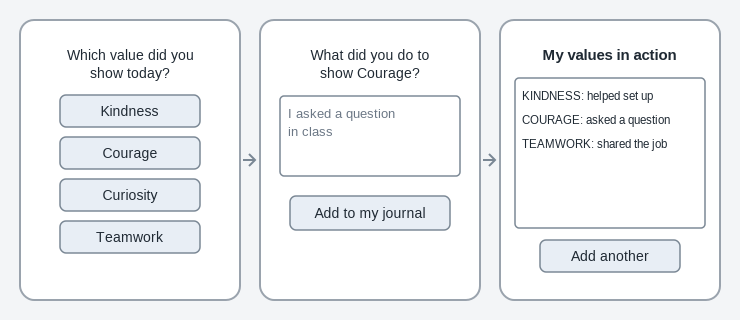
Build a journal app with three screens: pick a value you showed today, say what you did, then see every entry in a list. A variable carries your choice from one screen to the next, a list variable keeps the entries, and a List object shows them.
Almost every app has more than one screen: sign in, choose, confirm, see your list. Something has to remember what you did on the screen before.
Today's prototype has three screens. Each screen has its own objects and its own events.
- Choose: buttons for four values, such as Kindness, Courage, Honesty and Respect (or your school's own values).
- Describe: "What did you do to show Courage?", a box to type in, and an Add to my journal button.
- Journal: a list of every entry so far, and a button to add another.
How this lesson works: See it, Build, Check, Make it yours
- See it: Try the finished thing first, so you know what you are building.
- Build: Watch the short clip, then do the steps. Your app carries on from the step before.
- Check: A quick check that the idea has stuck.
- Make it yours: Change your app on purpose, then try it on someone.
Make your prediction first. Help opens once you've locked it in.
Try the finished app
This is the finished app you'll build, open on the Run tab. On the left, beside Chosen and Journal, you can see their values now.
Build 1: choose a value
The three screens are made for you: Choose, Describe and Journal. Click a screen's name in the sidebar to open it.
- In the sidebar, add a variable Chosen with an empty starting value (delete the 0).
- On the Choose screen's Events tab: KindnessButton is clicked → Variables, Set variable Chosen to
"Kindness", then Screen, Go to screen Describe. - Do the same for each value button.
A variable Chosen, and each value button sets it and goes to the Describe screen.
Run your program. This ticks when your code does all of the above.
Build 2: the next screen reads it
- Open the Describe screen. Add an event: Screen, On start of screen → Question, Set Question text to
"What did you do to show " & Chosen & "?" - Open the Choose screen, then Run, and click a value. Does the question name it?
On start of the Describe screen, the question shows Chosen.
Run your program. This ticks when your code does all of the above.
Build 3: keep the entries
- In the sidebar, under the variables, add a list called Journal.
- On the Describe screen, add an event: AddButton is clicked.
- Add the action Lists, Add … to the end of list, list Journal, value
uppercase(Chosen) & ": " & NoteInput.text - Add a second action: Go to screen Journal.
- Open the Journal screen, click the List object, and in Properties set Shows to Journal.
A list Journal; AddButton adds an entry to it and goes to the Journal screen; the List shows Journal.
Run your program. This ticks when your code does all of the above.
Build 4: back to the start
- On the Journal screen: AnotherButton is clicked → Go to screen Choose.
- Open the Choose screen, then Run, and add three entries.
Add another goes back to the Choose screen.
Run your program. This ticks when your code does all of the above.
Check: lists and loops
Nib's journal only ever shows the latest entry. Click the line where Nib first goes wrong.
Make it yours: count, then test the flow
The Journal screen has an empty Text called Count. Add an event: On start of screen → Set Count text to "Entries: " & count(Journal). The list grows by one each time you add an entry, so count(Journal) is how many there are.
Change the values to your school's own, or to four that matter to you. Then ask someone to add an entry without any help from you. Write down one place they paused or got stuck, and change the app so the next person doesn't.
When the Journal screen starts, Count shows how many entries there are.
Run your program. This ticks when your code does all of the above.
Lesson done. You've finished every step you need.
- Make an app with more than one screen and buttons that move between them.
- Use a whole-app variable to carry a choice from one screen to the next.
- Store entries in a list and show them with a List object.
For teachers
Students build a three-screen journal: choose a value, describe what they did, and see every entry in a list. A whole-app variable (Chosen) carries the choice between screens, a list variable (Journal) stores entries with Add to the end of list, and a List object on screen 3 shows the list. About 75 minutes.
Open the teacher guide: answers, solutions, slides and a worksheet.
Students will be able to
- I can make an app with more than one screen and buttons that move between them.
- I can use a whole-app variable to carry a choice from one screen to the next.
- I can store entries in a list and show them with a List object.
Before class
The values are examples. Use your school's own values if it has them, or let students choose four that matter to them. Entries are personal: the app keeps them in the browser on the student's own device and nothing is collected or shared. Keep any class discussion on made-up entries.
Each screen has its own events. The Events tab's heading names the screen; switch screens by clicking a screen's name in the sidebar.
Run starts on the screen you were editing. To test the whole flow, open the Choose screen first.
The List object shows a list variable by itself (its Shows property), so no loop is needed to fill it. Loops (For each, LoopIndex) come up in the Check step, and for real in the next lesson.
The journal forgets entries when the project is restarted. That's fine for a prototype.
Running the lesson
- Before Build 2 (whole class, on the deck): will screen 2 know which value was clicked on screen 1? Ask what 'whole app' might mean.
- Build 2: checkpoint: does screen 2 show the chosen value? Fix that before lists.
- Check: write LoopIndex 1, 2, 3 under three entries on the board, and point to item(Journal, 1), item(Journal, 2), item(Journal, 3).
- Make it yours: pair students from different tables, so the tester hasn't seen the app built.
The hard part (on purpose)
This is the longest build in the course, and the most common failure is adding events on the wrong screen. The Events tab shows the events of the screen open in the sidebar; check its heading before anyone debugs further.
When students get stuck
- A screen's buttons do nothing. Ask: Which screen were the events added to? Fix: Look at the Events tab's heading. Move the event by rebuilding it on the right screen.
- Screen 3's list is empty. Ask: What does the List's Shows property say, and does the Add run before Go to screen? Fix: Set Shows to Journal, and keep Add to the end of list above Go to screen in AddButton's event.
- The question says 'What did you do to show ?' Ask: Did you run from the Choose screen? Fix: Open the Choose screen, then Run, so a value is chosen first.
Stretch and support
Stretch: Show only the Courage entries: on the Journal screen, use For each item in list Journal with a condition on LoopItem, and add matching ones to a second list.
Support: Build screens 1 and 2 as a class first, then let students build screen 3 in pairs.
Where it leads
Next: Creature stats, where one object has many copies, each with its own values.
What each step is for
- Try the finished app: Using the finished three-screen app first gives a target for the long build and shows the variable carrying the choice.
- Build 1: choose a value: A variable in the sidebar belongs to the whole app, so the choice made here can be read on the next screen.
- Build 2: the next screen reads it: Seeing the chosen value appear on the next screen shows a whole-app variable keeps its value across screens.
- Build 3: keep the entries: A list variable keeps every entry, and a List object shows it, one row per entry.
- Build 4: back to the start: Closing the loop between screens makes it a whole app a user can move through.
- Check: lists and loops: Tracing LoopIndex and finding Nib's Clear check how a list holds entries, using the whole-app variables the move depends on.
- Make it yours: count, then test the flow: Showing the count reuses the list itself with count(), then watching a user move through three screens is the design half of a prototype.