Tidy up the journal
Refactor the values journal: change how it's built without changing what it does. Four near-identical button events become one function, Pick(value), and the back buttons on two screens become one All screens event. Run the same journey before and after to check nothing changed, then share the finished app with your teacher.
Real apps get changed for years. When the same few actions are copied in five places, a change means five edits, and missing one is a bug. Tidying them into one place is called refactoring.
The values journal from an earlier lesson works. Inside, though, some of it is written out more than once. Today you'll refactor it: change how it's built without changing what it does.
- Spot the repetition: jobs written out almost the same way in more than one place.
- Pull it into one place: a function, or an event on All screens.
- Check nothing changed: run the same journey before and after, and get the same result.
How this lesson works: See it, Check, Make it yours, Build
- See it: Try the finished thing first, so you know what you are building.
- Check: A quick check that the idea has stuck.
- Make it yours: Change your app on purpose, then try it on someone.
- Build: Watch the short clip, then do the steps. Your app carries on from the step before.
Make your prediction first. Help opens once you've locked it in.
Run it and write it down
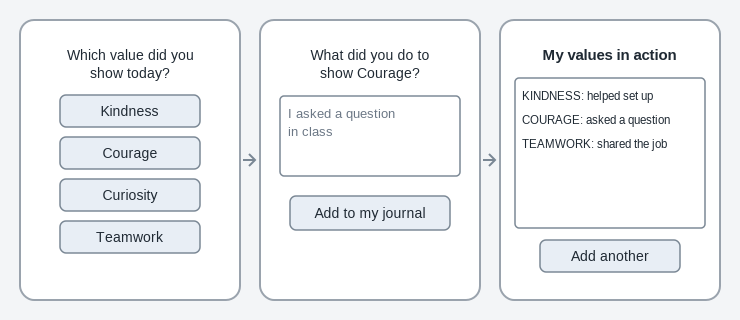
This is the finished values journal, open on the Run tab. Do this journey and write down what you see at the end:
- On Choose, click Courage.
- Type I asked a question in class and click Add to my journal.
- On the Journal screen, write down the entry and the count exactly as they appear.
You'll do the same journey at the end. If anything is different then, the tidy-up changed what the app does.
Spot the repetition
Open the Choose screen, then the Events tab, and read the four button events side by side.
Tidy 1: one function, Pick
- In the sidebar, under Functions, click + Function and name it Pick.
- Click + Parameter and call it value. Inside the function, value is whatever the call gives it.
- Add the function's actions: Variables, Set variable Chosen to
value(no quote marks: it's the parameter's name, not the word "value"), then Screen, Go to screen Describe. - Open the Choose screen's events. In KindnessButton is clicked, delete both actions and add Functions, Call Pick with value
"Kindness". - Do the same for the other three buttons, each with its own value.
- Run it and click each button. Does each one still go to Describe with the right question?
Now, if every value should also play a sound, that's one change in Pick, not four.
A function Pick(value) sets Chosen to value and goes to Describe, and each value button just calls Pick with its value.
Run your program. This ticks when your code does all of the above.
Find Nib's slip
After Nib's tidy-up, clicking a value does nothing you can see. Click the line where Nib first goes wrong.
Tidy 2: one Home event for every screen
The Describe screen has no way back. Add one the way you know:
- Open the Describe screen and add a Button called HomeButton, with the text Home.
- On Describe's Events tab: HomeButton is clicked → Go to screen Choose.
Now look at the Journal screen's events too. AnotherButton is clicked → Go to screen Choose. That's the same job, written out a second time.
- On the Journal screen, rename AnotherButton to HomeButton. Keep its text as Add another: the name is for the events, the text is for the user.
- Click All screens in the sidebar and add one event: HomeButton is clicked → Go to screen Choose.
- Delete the Home events on Describe and on Journal. The All screens event does both jobs now.
- Open the Map tab. The arrows back to Choose now come from one event.
An All screens event runs on every screen. On a screen with no HomeButton, such as Choose, it just never happens.
Describe has a HomeButton, and its own event takes you back to Choose.
Run your program. This ticks when your code does all of the above.
AnotherButton is now called HomeButton, and one All screens event, HomeButton is clicked, goes to Choose (with no Home events left on the screens).
Run your program. This ticks when your code does all of the above.
Same journey, same result?
Open the Choose screen, then Run, and do the same journey as at the start: Courage, I asked a question in class, Add to my journal. Compare the Journal screen with what you wrote down.
If something is different, the tidy-up changed what the app does. Find the event or function you changed and compare it with the old one.
Hand it in
- Click Share at the top of App Builder and copy the link.
- Send it to your teacher the way your class usually hands work in. The link opens your app ready to run, with Open a copy in App Builder if they want to look inside.
If your teacher would rather have a file, Save at the top, then Save to this computer…, keeps a copy to upload instead.
Lesson done. You've finished every step you need.
- Spot repetition in my events and say what's the same and what's different.
- Make a function with a parameter and call it from several events.
- Use one All screens event in place of the same event on several screens.
- Check that a change didn't break anything by running the same test before and after.
For teachers
Students refactor the values journal: they change how it's built without changing what it does. Four near-identical button events become one function, Pick(value), that each button calls with its own value; then a Home event written on two screens becomes one All screens event. A journey run before and after is the test that nothing changed. They hand in by sharing a link. About 50 minutes.
Open the teacher guide: answers, solutions, slides and a worksheet.
Students will be able to
- I can spot repetition in my events and say what's the same and what's different.
- I can make a function with a parameter and call it from several events.
- I can use one All screens event in place of the same event on several screens.
- I can check that a change didn't break anything by running the same test before and after.
Before class
This lesson starts from the finished values journal, so students who did that lesson will recognise it. Students who missed it can still do this one: the first step has them use the app before changing it.
Refactoring is a real skill in any app or language: spot repetition, pull it into one place, then run the same test again. The point to land is the last part. A refactor that changes what the app does is a bug, however tidy it looks.
Functions and All screens are Level 4. Each step opens App Builder at Level 4, so both show in the sidebar.
Inside Pick, value is a plain name (no quote marks). The call gives it a value: Call Pick with value = "Courage" (quote marks, because there it's text).
An All screens event runs on every screen, matched by object name. On Choose there's no HomeButton, so the event never happens there. Renaming AnotherButton to HomeButton keeps its text ("Add another"): the name is what events use, the text is what the user sees.
Hand-in: Share puts the whole app inside the link (nothing is uploaded), and the link opens a play-only page with "Open a copy in App Builder". Save gives a file instead (a .json, or a .zip when the app has its own pictures or sounds).
Running the lesson
- Spot the repetition (whole class, on the deck): put the four events side by side. Circle what's the same, underline what's different.
- Tidy 1: checkpoint: does each button still go to Describe with the right question? Fix that before Tidy 2.
- Tidy 2: ask what would happen if we added a fourth screen with a HomeButton. (Nothing to add: the All screens event already covers it.)
- Same journey: pairs swap and do each other's journey, comparing with the notes from the start.
The hard part (on purpose)
The hard part is the parameter. Students often type "value" with quote marks inside Pick, which sets Chosen to the word value. Ask what Chosen shows on the left when they Run; a parameter is a plain name, like a variable.
When students get stuck
- Clicking a value does nothing. Ask: What did the old events do that Pick doesn't? Fix: Add Go to screen Describe to Pick, after Set variable Chosen to value.
- The question says 'What did you do to show value?' Ask: In Pick, is value inside quote marks? Fix: Remove the quote marks: Set variable Chosen to value, with value as a plain name.
- Home works on Describe but not on Journal. Ask: What is the Journal screen's button called now? Fix: Rename AnotherButton to HomeButton; the All screens event looks for that name.
- The check for Tidy 2 doesn't tick, but Home works. Ask: Are the old Home events still on Describe or Journal? Fix: Delete them: the All screens event does the job on both screens.
Stretch and support
Stretch: Make the Describe screen's AddButton event shorter with a second function, SaveEntry(text), that adds the entry and goes to the Journal screen. Is it worth it for one event? (A function earns its place when it's used more than once, or when its name makes the event easier to read.)
Support: Do Tidy 1 together for Kindness on the board, then let pairs do the other three buttons.
Where it leads
Next: Creature scores, functions that give back a value. Then the challenge: encourage a tidy-up pass before they test with a real user.
What each step is for
- Run it and write it down: A refactor is only safe if you can show nothing changed, so the journey and its result are written down before any tidying.
- Spot the repetition: Naming what's the same and what's different in the four events is what tells you the function's actions (the same part) and its parameter (the different part).
- Tidy 1: one function, Pick: The same actions go in the function once; the one thing that changed becomes a parameter the call fills in.
- Find Nib's slip: Finding the action Nib left out shows that a refactor has to carry over everything the old events did, not just the part that changed.
- Tidy 2: one Home event for every screen: Writing the same Home event on two screens first makes the repetition real; one All screens event then replaces both, and any new screen with a HomeButton gets it for free.
- Same journey, same result?: Running the journey from the start of the lesson is the test: the same result means the refactor changed how the app is built, not what it does.
- Hand it in: Sharing the working app lets the teacher run it, not just read about it.