A practice tracker
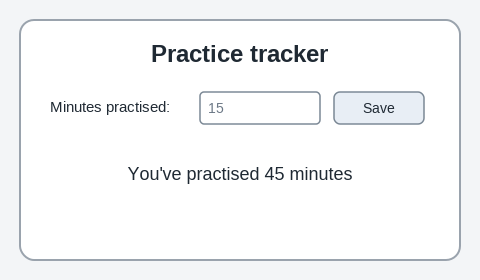
Build a prototype of a practice tracker: type how many minutes you practised, click Save, and the app adds it to your total. A variable remembers the total, a button event changes it, and the screen only shows the new total when an event sets the text.
Apps that track things, like steps, screen time or practice, all do the same small job underneath: remember a number, change it when you do something, and show it.
A prototype is an early version of an app that you can click through and test, before anyone spends weeks building the real thing. In this course you'll build prototypes with App Builder, which runs right here on the page.
An App Builder app has two halves:
- The design is the screen: the text, boxes and buttons the user sees.
- The events are what make it work. Each event is a row: on the left, when something happens; on the right, what to do then.
Today's app remembers your practice total in a variable: a named box that holds a number for the whole app.
How this lesson works: See it, Build, Check, Make it yours
- See it: Try the finished thing first, so you know what you are building.
- Build: Watch the short clip, then do the steps. Your app carries on from the step before.
- Check: A quick check that the idea has stuck.
- Make it yours: Change your app on purpose, then try it on someone.
Make your prediction first. Help opens once you've locked it in.
Try the finished app
This is the app you'll build, open on the Run tab. Type some minutes and click Save a few times. On the left, beside Minutes, you can see its value now, next to the value it started at.
Build 1: make the screen
- On the Design tab, choose + Add object, then Text. In Properties, change its text to Practice tracker.
- Add a Text input: the box the user types in.
- Add a Button and set its text to Save.
- Add one more Text below. Set its text to You've practised 0 minutes.
- Name the things your events will use, for what they are: select the button, click ⋯ beside it, choose Rename and call it SaveButton. Rename the text input MinutesInput and the last text TotalText. The title is never used by an event, so it can keep its name.
Drag things where you want them, or use the arrow keys (Alt and the arrows change the size). Your work carries on into the next steps.
The screen has a text input called MinutesInput, a button called SaveButton and a text called TotalText.
Run your program. This ticks when your code does all of the above.
Build 2: count with a variable
- Under Variables on the left, type Minutes in the New variable box, keep its starting value 0, and press Enter.
- Open the Events tab and choose + Add event.
- Choose + Condition, then SaveButton, then SaveButton is clicked.
- Choose + Action, then Variables, then Add … to variable. Type 15, check it says Minutes, and choose Done.
- Click Save in the preview a few times. Does the screen change?
It doesn't. On the left, beside Minutes, its value now goes up, but nothing has told the text to change. The screen only shows something new when an event sets the text.
A variable called Minutes, and an event: when SaveButton is clicked, add to Minutes.
Run your program. This ticks when your code does all of the above.
Build 3: show the total
- Click the event, choose + Action, then TotalText, then Set TotalText text to …. Type exactly:
"You've practised " & Minutes & " minutes" - Click Save in the preview. Now it changes.
- Use what the user typed: click the Add 15 action and change 15 to
int(MinutesInput.text). A text input holds text, even when you type 20;int()turns it into a number.
Your work is kept in this browser. Save at the top, then Save to this computer…, keeps a copy as a file if you want one.
The same event sets TotalText to show the total, and adds what was typed: int(MinutesInput.text).
Run your program. This ticks when your code does all of the above.
Check: how the text is made
Nib's screen never changes from 0 minutes. Click the line that explains why.
Make it yours: Reset and sessions
Carry on with your tracker. Add a Button with the text Reset and rename it ResetButton. Its event needs two actions: Set variable Minutes to 0, then set TotalText's text again (or the screen keeps the old total).
Add a second variable, Sessions, that goes up by 1 each time you click Save. Show it in a new Text, such as Sessions: 3. Make Reset clear it too.
Then show your tracker to someone. Ask them to use it without help. What did they try that you didn't expect?
A button called ResetButton whose event sets Minutes to 0 and sets TotalText's text.
Run your program. This ticks when your code does all of the above.
A second variable, Sessions, goes up by 1 on each Save and is shown on the screen, and Reset sets it back to 0.
Run your program. This ticks when your code does all of the above.
Lesson done. You've finished every step you need.
- Lay out a screen in App Builder with text, a text box and a button.
- Make a button change a number the app remembers.
- Make the screen show the new number after it changes.
For teachers
Students build a practice tracker in App Builder: a text input, a Save button and a total. A variable holds the total, the button's On clicked event adds to it, and a Set text action shows it. The build adds Set text last, so students see the variable change while the screen doesn't, then fix it. About 60 minutes.
Open the teacher guide: answers, solutions, slides and a worksheet.
Students will be able to
- I can lay out a screen in App Builder with text, a text box and a button.
- I can make a button change a number the app remembers.
- I can make the screen show the new number after it changes.
Before class
App Builder runs inside the lesson page: nothing to install, no sign-in, no event limit. Each step keeps its own work in the browser, so a student who comes back carries on; Start again (press it twice) resets that step. Work is per browser and device: on a shared computer, use Save to keep a copy as a file (Open brings it back), or Share for a link to the working app.
The steps below have tick boxes that tick by themselves when the student's events match (the page reads the app as plain text). They say what to build, not how the screen looks, so layouts can differ.
The one idea: a variable remembers a number, an event changes it, and the screen only shows the new number when an event sets the text. Build 2 is the reveal: the total changes, the screen doesn't.
If students type words instead of a number, int() gives 0, so nothing is added. That's a good question for later (checking input), not this lesson.
Running the lesson
- Before the build (whole class, on the deck): does the total on screen change if the event only adds to Minutes? Most say yes. Leave it open until Build 2, where the screen doesn't change.
- Build 2: stop the class at the last step. Ask: is Minutes 45? How would we know? What did we never tell the screen to do?
- Check: read the Set text expression aloud together, piece by piece.
- Make it yours: before they build Reset, ask what would go wrong with only one of the two actions.
The hard part (on purpose)
Finding things the first time: Properties on the right, renaming from the ⋯ menu on the left, and + Condition and + Action on the Events tab. Expect the first 10 minutes to be slow. Naming objects (SaveButton, TotalText) pays off as soon as students open the Events tab.
When students get stuck
- Nothing happens when Save is clicked. Ask: Which object did you pick for the condition? Fix: Check the condition says SaveButton is clicked, and that the button is the one named SaveButton.
- The text shows the words Minutes or & on the screen. Ask: Which parts are inside the quote marks? Fix: Only the words to show go in quotes. Minutes and the & signs go outside them.
- Typing a number adds 0. Ask: What does the add action use? Fix: It should be int(MinutesInput.text), with the text input's own name if it was called something else.
Stretch and support
Stretch: Make the total read in hours and minutes once it's over 60 (hint: floor(Minutes / 60) and Minutes % 60).
Support: Pairs: one reads the step, one clicks, then swap for the Events half.
Where it leads
Next: Chores checklist, which makes a tick that turns on and off with sub-events and Else.
Students who go on to Construct games meet the same events and variables again, in a game.
What each step is for
- Try the finished app: Using the working app first gives students the goal before anything is taken apart: every later step builds back towards it.
- Build 1: make the screen: Laying out the screen first, with names that say what each thing is, makes the events in the next steps easy to read.
- Build 2: count with a variable: Students hit the lesson's idea themselves: the variable changes but the screen doesn't, because nothing sets the text.
- Build 3: show the total: Adding Set text fixes what students just saw, and int() makes the typed number count.
- Check: how the text is made: Reading the Set text expression and Nib's mistake both point at the move: the screen shows whatever the last Set text said, and only an event changes it.
- Make it yours: Reset and sessions: A Reset button and a second counter need both moves again: change a variable, then set the text. Doing them without steps is the check that the move has stuck.