A chores checklist
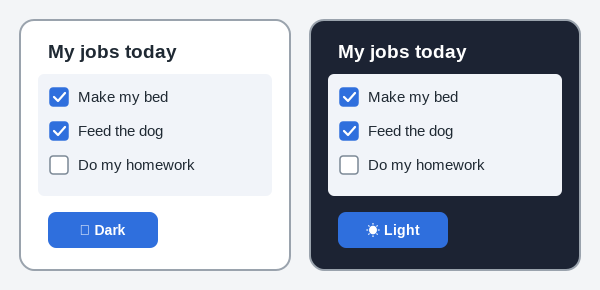
Build a checklist of jobs as tick boxes, then a 🌙 Dark / ☀️ Light button that switches the screen and back. Two separate events with the same trigger both run on one click and undo each other, so the switch is one event with a sub-event and an Else: one trigger, two branches, and only one branch runs.
A dark mode button looks like the simplest thing in an app. Making one that switches back shows how apps choose between two things to do.
Today's prototype is a list of jobs to tick off, and a button that switches the screen between light and dark.
The ticking is built in: a Toggle can look like a tick box. The light and dark button you build yourself, and it needs the lesson's one big idea.
How this lesson works: See it, Build, Check, Make it yours
- See it: Try the finished thing first, so you know what you are building.
- Build: Watch the short clip, then do the steps. Your app carries on from the step before.
- Check: A quick check that the idea has stuck.
- Make it yours: Change your app on purpose, then try it on someone.
Make your prediction first. Help opens once you've locked it in.
Try the finished app
This is the checklist you'll build, open on the Run tab. Tick and untick the jobs. Click 🌙 Dark a few times: dark, then light, then dark. The event list beside the app lights up each time an event runs.
Build 1: jobs as tick boxes
The screen is made for you: a title, three jobs on a light card, and a button called ModeButton. Each job is a Toggle, an on/off switch. (You can change the jobs to your own at the end.)
- Click Make my bed to select it. In Properties, set Look to Tick box.
- Do the same for the other two jobs.
- Run it and tick a job, then untick it. You didn't write an event: a Toggle switches itself.
All three jobs are Toggles with the Tick box look.
Run your program. This ticks when your code does all of the above.
Build 2: a button that goes dark
The app has a variable, Dark, made for you on the left. It starts at false: the screen isn't dark yet. A variable that is only ever true or false is a true/false variable.
- On the Events tab, choose + Add event, + Condition, ModeButton, ModeButton is clicked.
- Add four actions:
- Variables, Set variable Dark to
true - Screen, Set screen background to
"#1c2333"(a dark blue) - Title, Set Title colour to
"white" - ModeButton, Set ModeButton text to
"☀️ Light"(copy it from here)
- Variables, Set variable Dark to
- Click the button in the preview. It goes dark. Click again: it stays dark.
ModeButton is clicked sets Dark to true, the screen background to "#1c2333", Title's colour to "white" and its own text to "☀️ Light".
Run your program. This ticks when your code does all of the above.
Build 3: two events (and why they cancel)
- Click the event to select it, choose + Condition, Variables, Variable … …, and type
false. Now it only goes dark when Dark is false. - Add a second event: ModeButton is clicked, and Variable Dark =
true. Give it the opposite actions: Dark tofalse, background"white", Title colour"black", text"🌙 Dark". - Click the button in the preview. Nothing seems to happen. Watch the events beside the preview: both light up on the one click. The first goes dark and sets Dark to true, then the second sees Dark is true and goes straight back.
Two separate events for ModeButton: one checks Dark = false and goes dark, one checks Dark = true and goes light.
Run your program. This ticks when your code does all of the above.
Build 4: a sub-event
- Delete both events: click each, then ⋯, Delete this event.
- Add one event: ModeButton is clicked, with no other condition and no action.
- With it selected, choose ⋯, Add a sub-event.
- Give the sub-event the condition Variable Dark =
falseand the four dark actions from Build 2.
One ModeButton click event with a sub-event: if Dark = false, go dark (all four actions). The two flat events are gone.
Run your program. This ticks when your code does all of the above.
Build 5: an Else
- With the sub-event selected, choose ⋯, Add an Else below.
- Give the Else the four light actions: Dark to
false, background"white", Title colour"black", text"🌙 Dark". - Click to go dark, click again to go light.
Your event should look like this:
| When (condition) | Do (actions) |
|---|---|
| ⚡ ModeButton is clicked | |
| ↳ Variable Dark = false | Set Dark to true, background "#1c2333", Title colour "white", ModeButton text "☀️ Light" |
| ↳ Else | Set Dark to false, background "white", Title colour "black", ModeButton text "🌙 Dark" |
You've built a switch by hand: it remembers whether it's on (Dark), and one click runs one of two branches. A Toggle with the Tick box look is App Builder's built-in version of the same thing: BedJob.on is true or false, like Dark.
The click event has a sub-event (Dark = false: go dark) and an Else (go light, all four actions), and the two flat events are gone.
Run your program. This ticks when your code does all of the above.
Check: which branch runs?
Nib's dark mode button doesn't seem to do anything. Click the line where Nib first goes wrong.
Make it yours: count what's done
Add a variable Done (starting at 0) and a Text called DoneText on the card, under the jobs. A tick box has its own trigger, BedJob is switched, and its own condition, BedJob is on. Use the same shape you just built: one event BedJob is switched, a sub-event BedJob is on that adds 1 to Done, and an Else that subtracts 1. In both branches, set DoneText to "Done: " & Done & " of 3". Then do the same for the other jobs.
Make a checklist for someone you know: a packing list, a morning routine, or jobs for a club. Use their words for each job. Add a Reset button that unticks every job (Turn BedJob off) and sets Done to 0. Then watch them use it without helping. What did they expect to happen that didn't?
Done goes up when a job is ticked and down when it's unticked, and DoneText shows it.
Run your program. This ticks when your code does all of the above.
Lesson done. You've finished every step you need.
- Turn a Toggle into a tick box and use it in a list.
- Change colours while an app runs, and keep on or off in a true/false variable.
- Explain why two separate events with the same trigger undo each other.
- Use a sub-event and Else so that only one of two things happens.
For teachers
Students make a checklist of jobs as tick boxes (Toggles with the Tick box look, which switch themselves), then build a 🌙 Dark / ☀️ Light button by hand with a true/false variable Dark. They first build a button that goes dark and stays dark, then try two separate click events (which cancel each other on one click), then fix it with one click event, a sub-event and an Else. About 60 minutes.
Open the teacher guide: answers, solutions, slides and a worksheet.
Students will be able to
- I can turn a Toggle into a tick box and use it in a list.
- I can change colours while an app runs, and keep on or off in a true/false variable.
- I can explain why two separate events with the same trigger undo each other.
- I can use a sub-event and Else so that only one of two things happens.
Before class
Needs App Builder 1.11 or later (the tick box look is 1.10, colours while the app runs are 1.11). The lesson's playground already has it.
The jobs are Toggles. Look: Tick box changes only how they look: BedJob.on is true or false either way, and "is switched" and "is on" work the same. A Toggle can't be given a colour, so the jobs sit on a light card (a Box) that stays light in dark mode.
Sub-events and Else are added from an event's ⋯ menu (Add a sub-event, Add an Else below). Select the event first by clicking it.
Dark is a true/false variable: it starts at false. Conditions compare it with = (Variable Dark = false). In a formula, App Builder's if() needs a comparison too: if(Dark = true, "On", "Off"), not if(Dark, …).
The emoji ☀️ and 🌙 paste fine on most laptops; if one shows an empty square, use "Light" and "Dark" instead, in the actions and in the button's text.
The one idea: on one click, every event whose conditions are true runs, top to bottom. One trigger with two branches (a sub-event and an Else) means exactly one runs.
Running the lesson
- Before Build 3 (whole class, on the deck): two events, one click: what does the screen show? Most say dark. Leave it open; Build 3 is the reveal.
- Build 3: ask a pair to explain what happened in order: first event, then second event, and what Dark was each time.
- Check: draw the event on the board with the two branches as arrows. Only one arrow is taken per click.
- After Build 5: point back to the tick boxes. Each one is the same switch, built in: it remembers on or off, and one click flips it.
- Make it yours: this is the review step. Ask which branch means 'just finished a job'.
The hard part (on purpose)
Building the version that doesn't work on purpose (Build 3) feels like wasted effort, and Build 4 asks students to delete it and type the actions again. That's the point: they need to see two flat events cancel before the sub-event makes sense. Pairs can share the typing.
When students get stuck
- The screen doesn't go dark at all. Ask: What does the condition check, and what does Dark start at? Fix: Dark starts at false, so the dark branch checks Variable Dark = false. Type false with no quote marks.
- The colour action is missing for a job. Ask: What kind of object is the job? Fix: Toggles can't be coloured; that's why the jobs sit on a light card. Set colours only on Texts, Boxes and Buttons.
- There's no Add a sub-event in the menu. Ask: Which level is the app on? Fix: Sub-events need level 2 or more. In a lesson the level is set for you; if the menu lacks it, tell your teacher.
- Done goes up when unticking. Ask: Which branch has the add 1? Fix: Add 1 belongs in the BedJob is on branch (it's just been ticked); subtract 1 in the Else.
Stretch and support
Stretch: Show "All done!" when Done is 3: set DoneText to if(Done = 3, "All done!", "Done: " & Done & " of 3"). Or swap ModeButton for a Toggle with the Switch look, and use ModeButton is switched with ModeButton is on.
Support: Give pairs the finished event (the table at the end of Build 5) to copy, then ask them to explain each row.
Where it leads
Next: Water tracker, which keeps a display up to date every tick and checks a goal.
What each step is for
- Try the finished app: Using the working app first gives students the goal before anything is taken apart: every later step builds back towards it.
- Build 1: jobs as tick boxes: A tick box that switches itself is the goal in miniature: the rest of the lesson builds the same on-and-off by hand, to see how it works.
- Build 2: a button that goes dark: A switch that can't switch back is the first working piece, and it shows the next problem: clicking again should go light.
- Build 3: two events (and why they cancel): Building the obvious fix and watching it fail is the lesson's surprise: on one click, every event whose conditions are true runs.
- Build 4: a sub-event: A sub-event runs only when its own condition is true, inside the one click event.
- Build 5: an Else: One trigger with a sub-event and an Else: exactly one branch runs on each click.
- Check: which branch runs?: Tracing which branch runs, and finding Nib's two flat events, both test the move: one trigger, then exactly one of the two branches.
- Make it yours: count what's done: Counting jobs done uses the same shape again with the tick boxes' own trigger, is switched, and condition, is on; then a checklist for a real person moves it to design.