Creature stats
Build a character viewer: click a creature and see its stats as text and bars. All three creatures are copies of one sprite, each with its own instance variables, and clicking one picks just that copy, so the event reads the stats of the one you clicked.
Character select screens, product pages and contact lists all work the same way: one design, many copies, each with its own details.
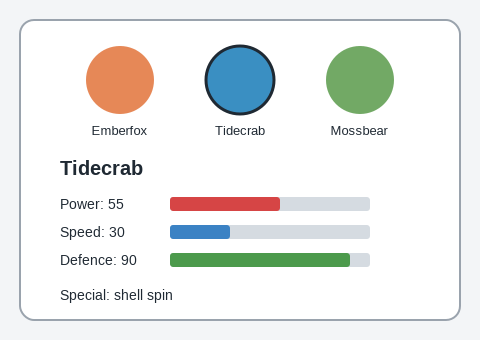
Today's prototype shows three made-up creatures: an Emberfox, a Tidecrab and a Mossbear. Click one, and its name, stats and special ability appear below.
You could make three separate sprites, each with its own events. Instead you'll make one sprite with three copies. In Construct the sprite is an object type, and each copy is an instance. Instance variables belong to the object type, but each instance keeps its own values: the Emberfox's power and the Tidecrab's power are different numbers.
How this lesson works: Predict, Try, Investigate, Modify, Make
- Predict: Read the problem and decide what you think before you try anything. A wrong guess is fine: it shows you what to look for.
- Try: Try it on the board and compare the result with your prediction.
- Investigate: Work out why it happens, one step at a time.
- Modify: Change the problem on purpose and see what happens.
- Make: Make your own problem using what you have learned. Expect a few tries; that is normal.
Make your prediction first. Help opens once you've locked it in.
Whose name shows?
Try the finished app
This is the finished app you'll build. Click the Tidecrab last.
Click each creature in turn. One event shows all three.
Use the board. This ticks when you get there.
Build it: the creature viewer
One sprite, three looks
- Start a New project called Creature stats.
- Insert a Sprite called Creature. Draw the first creature (a simple shape and colour is fine).
- In the animation editor's Animation frames panel, right-click and add a frame. Draw the second creature. Add a third frame for the third.
- Close the editor. In the sprite's animation properties, set Speed to 0, so it doesn't flick between frames.
- Copy and paste the sprite twice, so there are three in a row. Select the second and set its Initial frame to 1; the third to 2.
Instance variables
- Select any Creature. In Properties, find Instance variables and add: name (String), power, speed, defence (Numbers, 0 to 100), and ability (String).
- Click each creature in turn and fill in its own values. Make up the numbers, but be ready to say why each creature has them.
The stats area
- Below the creatures, insert Text objects: NameText, PowerText, SpeedText, DefenceText and AbilityText. Leave their text empty.
- Beside PowerText, insert a Sprite called PowerBar: a red rectangle 200 wide. Set its width to 0 for now. Make SpeedBar and DefenceBar the same way in other colours.
Make the sprites clickable
- Insert the Mouse object (and Touch, if your class uses tablets). It has no picture; it lets events react to clicks on any object.
- Add the event: Mouse, On object clicked, left button, clicked, Creature.
- Add actions: NameText, Set text,
Creature.name; PowerText, Set text,"Power: " & Creature.power; and the same for speed and defence; AbilityText,"Special: " & Creature.ability. - Add PowerBar, Set width,
Creature.power / 100 * 200, and the same for the other two bars. - Preview and click each creature.
One event, many creatures
Nib wanted the other two creatures to fade. Click the line where Nib's thinking goes wrong.
A fourth creature
Add a fourth frame in the animation editor, paste a fourth copy of the sprite, set its Initial frame to 3, and fill in its instance variables. Then preview and click it.
Your own character cards
Choose your own set: made-up creatures, pets, robots, plants or anything with at least three characters. Give each one at least three stats and a weakness as well as an ability. Make the numbers fair: be ready to say why the strongest one isn't the best at everything.
Lesson done. You've finished every step you need.
- Make several characters from one sprite, each with its own values.
- Explain the difference between an object type, an instance and an instance variable.
- Use one click event that works for whichever character is clicked.
For teachers
Students build a character viewer: one Creature sprite with three animation frames, three copies (instances) each with its own instance variables, and one Mouse on object clicked event that shows the clicked creature's name, stats as text and bars, and ability. They predict and test that clicking picks one copy, find Nib's mistake (expecting an action to fade every creature), add a fourth creature without changing the event sheet, then design their own set. About 75 minutes.
Open the teacher guide: answers, solutions, slides and a worksheet.
Students will be able to
- I can make several characters from one sprite, each with its own values.
- I can explain the difference between an object type, an instance and an instance variable.
- I can use one click event that works for whichever character is clicked.
Before class
A sprite can't be clicked on its own. Insert the Mouse object (and Touch for tablets) and use Mouse, On object clicked; this is how any sprite becomes a button, and it's worth naming as a general trick.
The creatures are made up (Emberfox, Tidecrab, Mossbear). Students' own sets in Make should be made up or everyday things too; steer away from real people.
Vocabulary (for teachers, and for students who ask): the sprite is the object type (a class in other languages), each copy is an instance (an object), and instance variables are its properties.
Picking is Construct's big idea: a condition picks the instances it's true for, and actions in that event apply only to those. The games course builds on it.
These steps were written fresh for this site and have not yet been checked click by click in the current editor. Run through them once before class; Construct updates itself, so a menu name may differ slightly.
Running the lesson
- Predict: ask how Construct could know which creature you mean.
- Build it: check at step 7 that every creature has its own values before anyone builds the stats area.
- Investigate: act it out: three students are creatures, one clicks; only the clicked one obeys the next instruction.
- Modify: ask for a prediction before anyone opens the event sheet.
The hard part (on purpose)
Filling in instance variables for each copy: students set the values on one creature and assume the others have them. Each copy must be selected and filled in separately.
When students get stuck
- Clicking a creature does nothing. Ask: Is the Mouse object in the project, and does the event use Mouse, On object clicked? Fix: Insert Mouse (Insert new object, Mouse), then make the event from Mouse, not from the sprite.
- Every creature shows the same stats. Ask: Did you fill in the values on each creature separately? Fix: Select each copy on the layout and set its own instance variables in Properties.
- All three creatures look the same. Ask: What's each copy's Initial frame? Fix: Set 0, 1 and 2, and animation Speed to 0.
Stretch and support
Stretch: A comparison mode: click two creatures and show their stats side by side (hint: remember the first one's values in global variables).
Support: Give pairs the instance variable table filled in, so they can spend the time on the event.
Where it leads
Next: the challenge, a prototype of their own for a real user. In the games course, picking and instance variables come back with many enemies on screen.
What each step is for
- whose name shows?: Predicting which name appears sets up the move: clicking an instance picks it, so the event reads that copy's instance variables.
- Try the finished app: Clicking each creature in the finished viewer shows the move before it's built: one event, a different result for each copy.
- Build it: the creature viewer: Building one sprite with three instances and one click event makes picking visible: the same event shows different stats for each creature.
- one event, many creatures: The fade question and Nib's mistake test picking from the other side: an action in a picking event touches only the picked copy, not every instance.
- a fourth creature: Adding a creature without touching the event sheet shows the payoff of instance variables and picking: the event already works for any copy.
- your own character cards: A viewer of their own choosing uses the whole pattern (one object type, instance variables, a picking click event) in a new context.