A chores checklist
Build a checklist where clicking a box ticks it, and clicking again unticks it. Two separate events with the same trigger both run on one click and undo each other, so the toggle is one event with a sub-event and an Else: one trigger, two branches, and only one branch runs.
A tick box looks like the simplest thing on a screen. Making one that turns on and off shows how apps choose between two things to do.
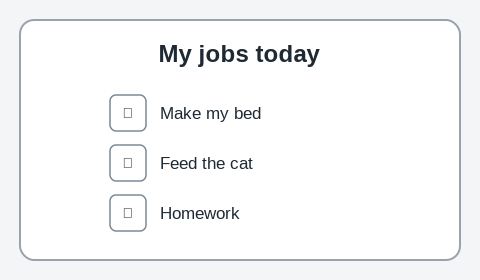
Today's prototype is a list of jobs, each with a box beside it. Click the box and it shows a tick. Click again and the tick goes.
A Construct Button can be the box: its text is just an empty-box character, ⬜, and an event changes it to a tick, ✅.
How this lesson works: Predict, Try, Investigate, Modify, Make
- Predict: Read the problem and decide what you think before you try anything. A wrong guess is fine: it shows you what to look for.
- Try: Try it on the board and compare the result with your prediction.
- Investigate: Work out why it happens, one step at a time.
- Modify: Change the problem on purpose and see what happens.
- Make: Make your own problem using what you have learned. Expect a few tries; that is normal.
Make your prediction first. Help opens once you've locked it in.
Two events, one click
| When (condition) | Do (actions) |
|---|---|
| BedBox: on clicked · BedBox: text is "⬜" | BedBox: set text to "✅" |
| BedBox: on clicked · BedBox: text is "✅" | BedBox: set text to "⬜" |
Try it: two events, one click
This is the version from the prediction. Watch the event sheet: which rows light up on one click?
This version has two separate On clicked events. Click a box a few times and watch both events light up.
Use the board. This ticks when you get there.
Build it: the checklist
Make the screen
- Start a New project called Chores checklist.
- Insert a Text object at the top with the text My jobs today.
- Choose three jobs. Insert a Text object for each one, in a column, such as Make my bed.
- Insert a Button beside the first job. Set its Text to ⬜ (copy it from here) and its Name to BedBox. Make it a small square.
- Add a button beside each other job the same way, with names that match, such as FeedBox and HomeworkBox.
A tick that stays on
- In the event sheet, add BedBox, On clicked. Add the action BedBox, Set text, and type
"✅". - Preview and click the box. It ticks. Click again: it stays ticked.
Try two events (and watch them cancel)
- Add a condition to that event: right-click it, Add another condition, BedBox, Compare text, and type ⬜.
- Add a second event the same way, but checking for ✅ and setting the text to ⬜.
- Preview and click. Nothing seems to happen. That's your prediction.
One event, two branches
- Delete both events. Add one event: BedBox, On clicked, with no other condition and no action.
- Select it and press S to add a sub-event. Give the sub-event the condition BedBox, Compare text, ⬜ and the action Set text to ✅.
- Select the sub-event and press X to add an Else below it. Give the Else the action Set text to ⬜.
- Preview. Click to tick, click again to untick. Then do the same for the other boxes.
Your event should look like this:
| When (condition) | Do (actions) |
|---|---|
| BedBox: on clicked | |
| ↳ BedBox: text is "⬜" | BedBox: set text to "✅" |
| ↳ Else | BedBox: set text to "⬜" |
Which branch runs?
Nib's box won't untick properly. Click the line where Nib first goes wrong.
Count what's done
Add a global variable Done and a Text object called DoneText. In each box's ⬜ branch add 1 to Done; in each Else subtract 1. Then set DoneText to "Done: " & Done & " of 3" in both branches.
A checklist for someone
Make a checklist for someone you know: a packing list, a morning routine, or jobs for a club. Use their words for each job. Add a Reset button that unticks everything and sets Done to 0.
Then watch them use it without helping. What did they expect to happen that didn't?
Lesson done. You've finished every step you need.
- Make a button change its own text when it's clicked.
- Explain why two separate events with the same trigger undo each other.
- Use a sub-event and Else so that only one of two things happens.
For teachers
Students build a checklist of jobs where each box is a Button whose text is ⬜ or ✅. They first build a tick that stays on, then try two separate On clicked events (which cancel each other on one click), then fix it with one On clicked event, a sub-event and an Else. About 60 minutes.
Open the teacher guide: answers, solutions, slides and a worksheet.
Students will be able to
- I can make a button change its own text when it's clicked.
- I can explain why two separate events with the same trigger undo each other.
- I can use a sub-event and Else so that only one of two things happens.
Before class
The box characters ⬜ and ✅ are emoji. On most laptops they paste fine into a Button's Text property; if a laptop shows empty squares, use [ ] and [x] instead, and change the conditions to match.
Keyboard shortcuts in the event sheet: S adds a sub-event, X adds an Else, B adds a blank sub-event (no condition). Select the event first.
These steps were written fresh for this site and have not yet been checked click by click in the current editor. Run through them once before class; Construct updates itself, so a menu name may differ slightly.
A Button's Type property can be Checkbox, which ticks and unticks by itself (On checked, On unchecked). Mention it, but the lesson builds the toggle by hand so the logic is visible.
The one idea: on one click, every event whose conditions are true runs, top to bottom. One trigger with two branches (a sub-event and an Else) means exactly one runs.
Running the lesson
- Predict: most choose ✅. Leave it open; step 10 is the reveal.
- Build it: at step 10, ask a pair to explain what happened in order: first event, then second event.
- Investigate: draw the event on the board with the two branches as arrows. Only one arrow is taken per click.
- Modify: this is the review step. Ask which branch means 'just finished a job'.
The hard part (on purpose)
Building the version that doesn't work on purpose (steps 8 to 10) feels like wasted effort, and some students skip it. It's the point of the lesson: they need to see two flat events cancel before the sub-event makes sense.
When students get stuck
- The box doesn't tick at all. Ask: What does the Compare text condition check for? Fix: It must be exactly the same character as the button's text. Copy and paste ⬜ from the button's Text property.
- S or X does nothing. Ask: Is the event selected (highlighted)? Fix: Click the event's condition first, then press the key.
- Done goes up when unticking. Ask: Which branch has the add 1? Fix: Add 1 belongs in the ⬜ branch (it's becoming ticked); subtract 1 in the Else.
Stretch and support
Stretch: Show "All done!" when Done equals the number of jobs. Which event checks it, and when?
Support: Give pairs the finished event as a picture (the table at the end of Build it) to copy, then ask them to explain each row.
Where it leads
Next: Water tracker, which keeps a display up to date every tick and checks a goal.
What each step is for
- two events, one click: Predicting the two-event version sets up the lesson's move: on one click every matching event runs, so two flat events undo each other.
- Try it: two events, one click: Clicking the two-event version settles the prediction on the page: both rows light up on one click and the box ends where it started.
- Build it: the checklist: Building the flat version first lets students see the prediction happen; the sub-event and Else then fix it.
- which branch runs?: Tracing which branch runs, and finding Nib's two flat events, both test the move: one trigger, then exactly one of the two branches.
- count what's done: Counting jobs done brings back last lesson's variable and Set text inside the two branches, so the review needs both moves together.
- a checklist for someone: Building for a real person moves the prototype from a lesson exercise to design: the user's words, the user's jobs, then watching them use it.