Inputs
Read what someone types with .value, react as they type, and turn text into a number with Number().
A calculator on a web page reads what you typed, then answers. You'll build one.
- Find and change · Find an element on a page with JavaScript, change its text and colour, and read what the console says.
- Forms · Build a form from labels, boxes and a button, and find out it collects answers but does nothing alone.
An input box has a value: whatever is typed in it right now. Read it inside a handler:
out.textContent = "Hello, " + nameBox.value + "!";
Two events are useful: "click" on a button, and "input" on the box itself, which fires on every keystroke.
The hard part is that .value is always text, even when someone types a number. "4" + "5" is "45", not 9. Turn it into a number first: Number(a.value).
How this lesson works: Predict, Run, Investigate, Modify, Make
- Predict: Read the code and say what it will do before you run anything. A wrong guess is fine: it shows you what to look for.
- Run: Run it and compare the result with your prediction.
- Investigate: Trace how each line of code connects to what you see.
- Modify: Change the code on purpose and check the result.
- Make: Build something new using what you have learned. Expect a few tries; that is normal.
Make your prediction first. Help opens once you've locked it in.
Predict
<input id="name" placeholder="Your name">
<button id="greet">Greet</button>
<p id="out"></p>
<script>
  const nameBox = document.querySelector("#name");
  const out = document.querySelector("#out");
  document.querySelector("#greet").addEventListener("click", function () {
    out.textContent = "Hello, " + nameBox.value + "!";
  });
</script>
When is nameBox.value read: when the page loads, or when the button is clicked?
Run
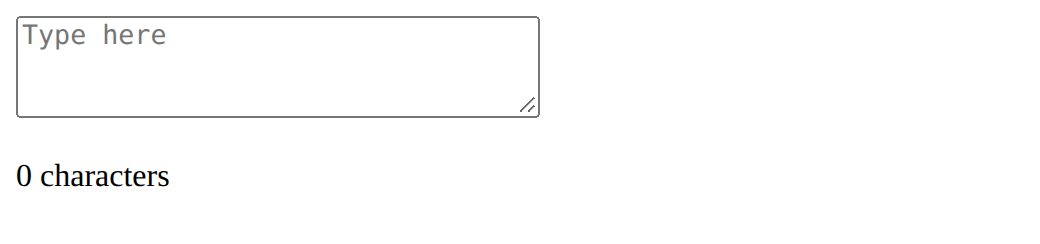
Press Run, then type in the box. The count changes on every keystroke, because the listener is on the "input" event.
<textarea id="msg" rows="3" cols="30" placeholder="Type here"></textarea>
<p><span id="count">0</span> characters</p>
<script>
  const msg = document.querySelector("#msg");
  const count = document.querySelector("#count");
  msg.addEventListener("input", function () {
    count.textContent = msg.value.length;
  });
</script>
Investigate
<textarea id="msg" rows="3" cols="30" placeholder="Type here"></textarea>
<p><span id="count">0</span> characters</p>
<script>
  const msg = document.querySelector("#msg");
  const count = document.querySelector("#count");
  msg.addEventListener("input", function () {
    count.textContent = msg.value.length;
  });
</script>
Match code with meaning.
What + does to text.
The sum is wrong, and nothing complains.
Match each piece with what it does.
The page shows 45 instead of 9. There is no red error. Click the line that is wrong.
Modify
Numbers, not text.
Need a hint?
Before a hint: what kind of stuck is this? Try a strategy first
The page is adding text. What does + do with text?
Another hint
Wrap each value in Number(...): Number(a.value) + Number(b.value).
Show the expected result

Decide as they type.
Need a hint?
Before a hint: what kind of stuck is this? Try a strategy first
An if inside the handler can look at how many characters there are.
Another hint
Add a paragraph for the warning, and if (msg.value.length > 20) { … } to fill it.
Show the expected result
Make the Add button show 9 for 4 + 5.
This ticks when your page has all of the above.
Show Too long! in red when the message has more than 20 characters.
This ticks when your page has all of the above.
A calculator of your own
Make a small tool that reads a number from a box and shows an answer: a tip calculator, a temperature converter (°C to °F), an age-in-days counter, a unit converter. Check for a bad number with isNaN(...), as the page on this lesson does.
Change a bill splitter
This page splits a restaurant bill between friends. It reads two boxes, checks that they hold sensible numbers and shows each person's share. Add a third box for a tip in percent, and make each share include it. For a $60 bill with a 10% tip and 4 people, each person should pay $16.50.
Need a hint?
Before a hint: what kind of stuck is this? Try a strategy first
Add a third box with its own id, read it with Number(...) like the other two, and work the tip out before you divide.
Add a tip box, and include the tip in what each person pays.
This ticks when your page has all of the above.
Where this leads
You can now read what people type. Next: build a list on the page.
Lesson done. You've finished every step you need.
- Read what someone types with .value.
- React on every keystroke with the input event.
- Turn typed text into a number with Number().
For teachers
Students read an input with .value, react as they type with the input event, find that values are text and use Number() to add, and make a calculator or converter of their own. About 50 minutes.
Open the teacher guide: answers, solutions, slides and a worksheet.
Students will be able to
- I can read what someone types with .value.
- I can react on every keystroke with the input event.
- I can turn typed text into a number with Number().
Before class
Read the unit primer first. This is the Python input() lesson with a twist: there is no program waiting, so the page reacts to an event. input fires on every keystroke; click on a button reads the box once. The big idea is that .value is always text, as input() was in Python: the same "45" surprise. The bug has no red error, so students must read the answer. Number("abc") is NaN; isNaN(x) checks for it, used in the Make example. The playground cannot send a form, on purpose: use a button and an event, not a <form>.
Running the lesson
- Predict: ask when the value is read.
- Run: ask students to type quickly and say when the number changes.
- Investigate: ask what + does to two pieces of text.
- Modify: ask what Number("5") gives, and what Number("hello") gives.
- Make: ask each student what could go wrong if someone types words.
The hard part (on purpose)
Text versus number: "4" + "5" is "45". Show the page, ask what + does to text, and only then show Number().
When students get stuck
- The sum shows 45, or the text joined. Ask: Is the value turned into a number first? Fix: Wrap each value: Number(a.value).
- Cannot read properties of null (reading value). Ask: Does the input id match the selector? Fix: Match the id exactly, with #.
- The box seems to do nothing. Ask: Is the listener on the box or the button, and is it the right event? Fix: Use "input" on the box, or "click" on the button.
- NaN is shown. Ask: Was the box empty or full of words? Fix: Check with isNaN and show a friendly message.
Stretch and support
Stretch: Make the result appear live, with no button at all, using the input event on each box.
Support: Give the greeting page and ask students to change only the words, then add a second box.
Where it leads
Next lesson: lists of elements: making new elements and adding them to the page.
What each step is for
- Investigate: .value is the text typed so far, and an input event fires on every keystroke; because it is text, turn it into a number with Number() before doing sums.
- Modify: Number() turns typed text into a number so sums work; an if inside the handler reacts to what was typed.
- a calculator of your own: Goals only: read an input, turn it into a number, work something out and show it on the page.