← Cyber safety and privacy

Cyber safety and privacy: recap

For after the lessons: one card per lesson, to check what you remember. Answer each question in your head or on paper first, then check it. Nothing here is marked.

Protect your accounts

1. When passwords fail

Try firstAva's game site leaks. Name two things that would have kept her other accounts safe.

Check your answer

A different password on each account; long, random passphrases (not on any common list); a password manager to make and remember them.

Passwords fail in three ways:

  • A site is breached and its list of passwords leaks.
  • Reuse spreads it: the leaked password is tried on every other site.
  • Guessable passwords (common words, symbol swaps, names and birthdays) are tried first, leak or not.

The fix: a long passphrase (four random words) that is different for every site, kept in a password manager.
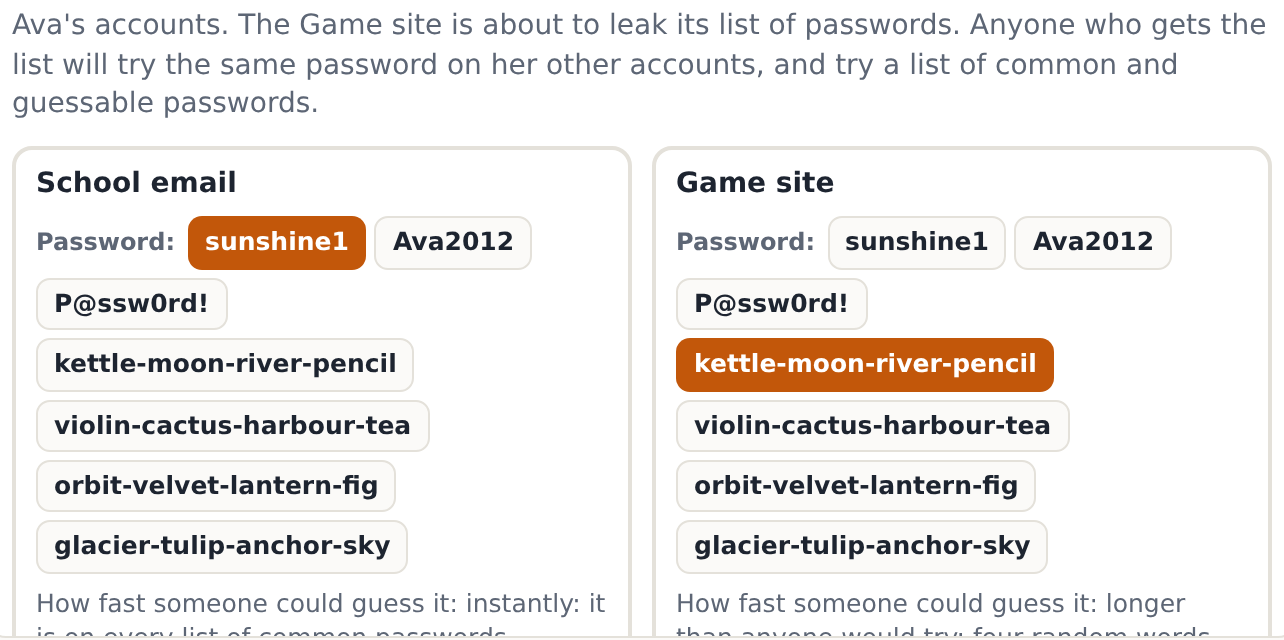
Ava's four accounts and their passwords: two are guessable and two share a passphrase.
One leak, every account · Sound on for the voiceover
Open the lesson →

2. A second lock

Try firstAva's password leaks but she has an app code turned on. Explain why her account is still safe, and one way it could still be lost.

Check your answer

The attacker doesn't have her phone, so can't get the code. She could be tricked into typing the code into a fake page or reading it out.

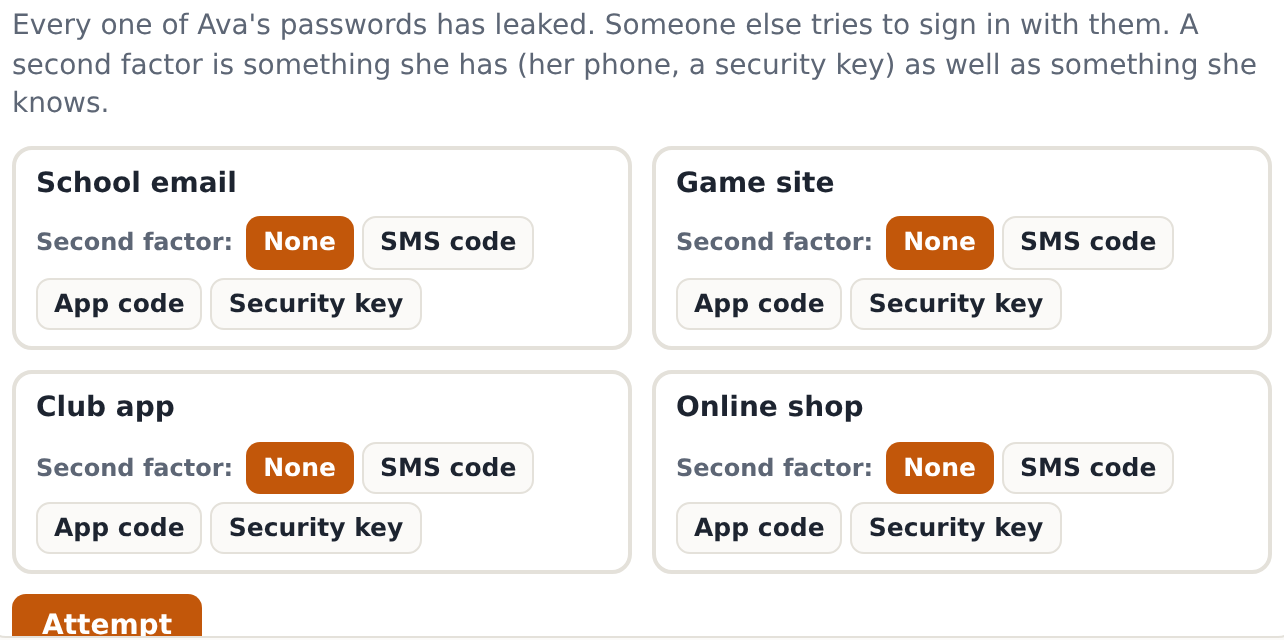
Multi-factor authentication (MFA) asks for two different kinds of proof:

  • something you know (a password),
  • something you have (a phone code, a security key),
  • something you are (a fingerprint or face).

With a second factor, a leaked password isn't enough. Codes can still be tricked out of you by a fake page or a phone call; a security key only answers the real site. Never share a code.

Ava's four accounts, each with a choice of second factor: none, SMS code, app code or security key.
A second factor · Sound on for the voiceover
Open the lesson →

3. Spot the phish

Try firstGive three signs that a message might be phishing, and what to do if you're not sure.

Check your answer

A wrong or lookalike address, pressure or a deadline, asking for a password, code or money, a link that goes somewhere else. Go to the site or person yourself; report it.

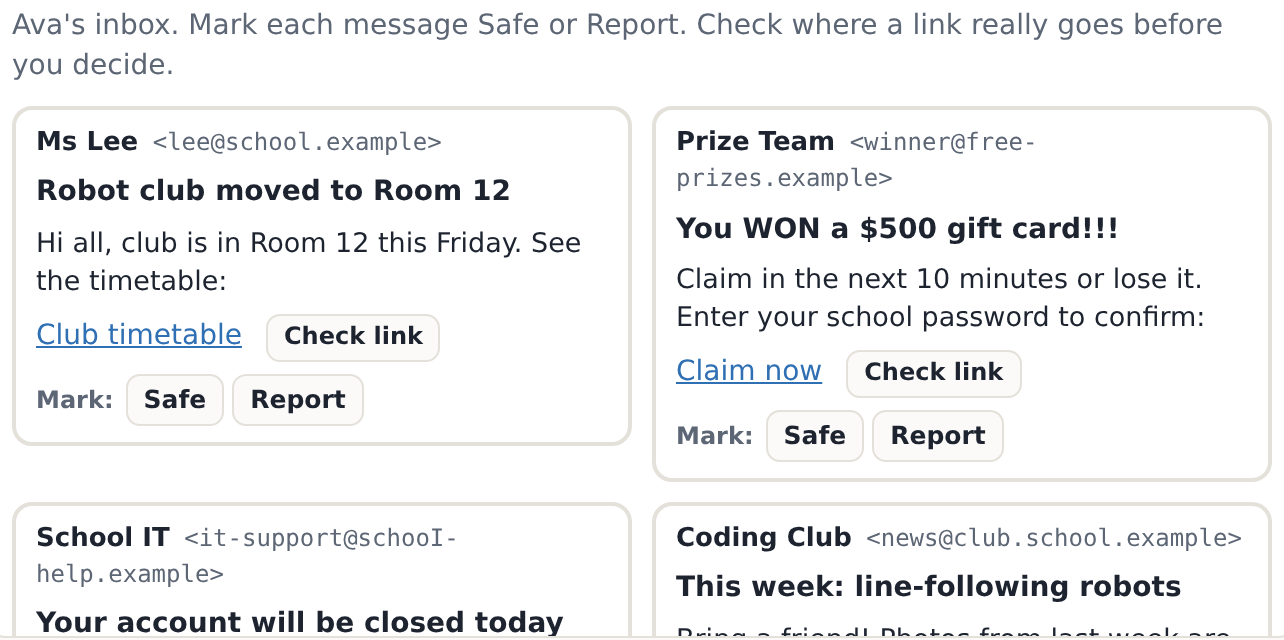
Phishing messages pretend to be someone you trust to get a password, money or a click. Check:

  • Who sent it? The address, not just the name.
  • Pressure? Deadlines, threats and prizes.
  • What does it want? Passwords, codes, money and gift cards are never asked for by message.
  • Where does the link go? Check before clicking.

Unsure? Go to the site or person yourself, and report it.

Ava's inbox: four messages to mark Safe or Report, each link checkable before deciding.
Checking a link · Sound on for the voiceover
Open the lesson →

4. Your digital footprint

Try firstName one piece of data an app collects without you typing it, and one sign-up field a club newsletter doesn't need.

Check your answer

Location, pages opened, sign-in times or device. A home address or date of birth.

Your digital footprint is all the data systems record about you:

  • what you give (your name, a photo, a poll answer)
  • what they collect as you use them (where you are, what you open and when, your device)

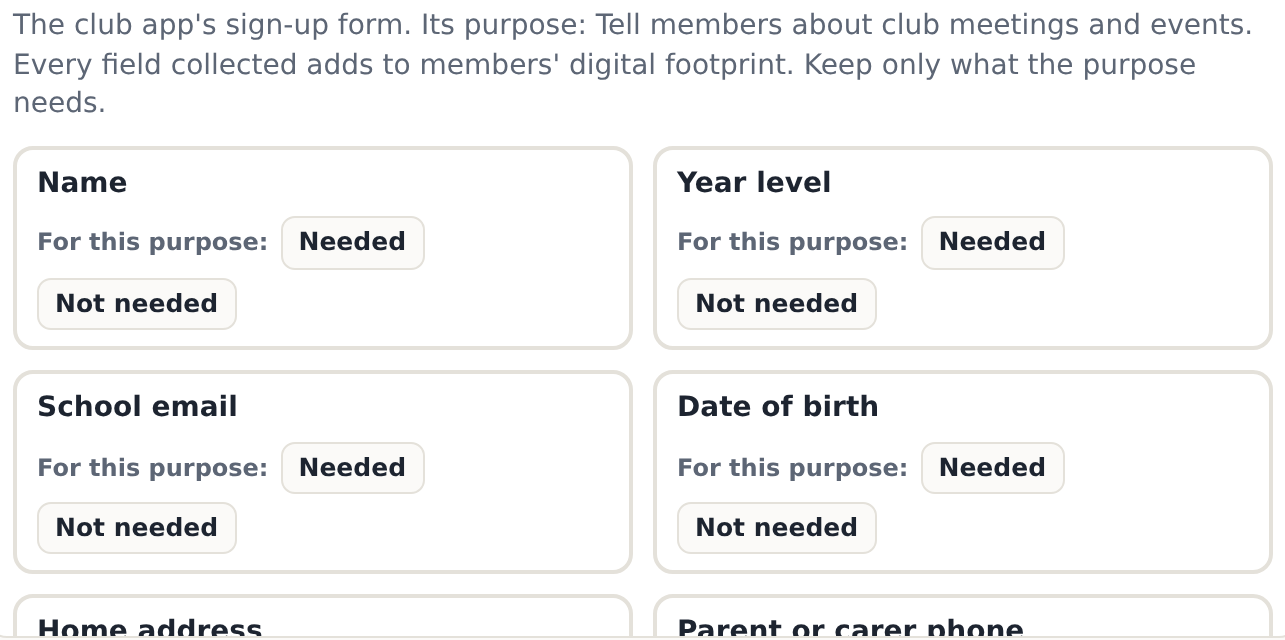
A good app collects only what its purpose needs: ask would it still work without this? You manage your own footprint by checking your settings, which often start open.

The club app's sign-up form: nine fields and settings to mark Needed or Not needed for its purpose, news about meetings.
Given or collected? · Sound on for the voiceover
Open the lesson →

Secure the system

5. Threat models

Try firstName two points in a web app where data is at risk, and the defence for each.

Check your answer

Travelling between browser and server (HTTPS); stored passwords (salted hashes); the admin page (access control and MFA).

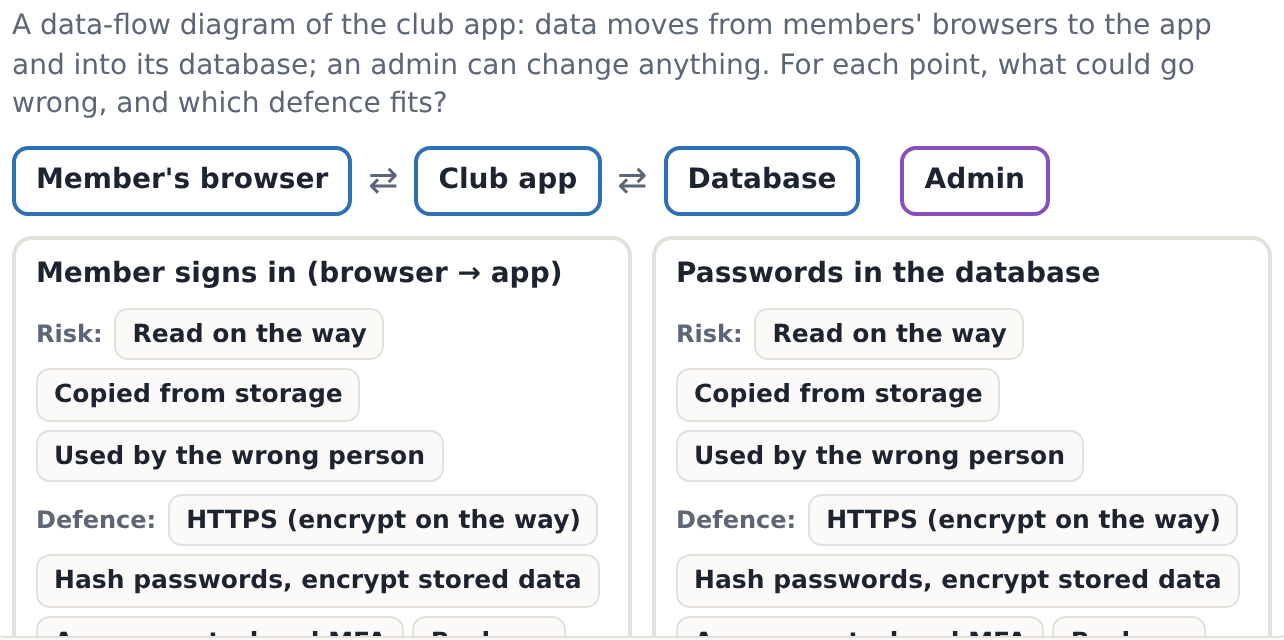
A threat model follows the data through a system on a data-flow diagram. At each point:

  • Travelling? It could be read on the way: HTTPS.
  • Stored? It could be copied: hash passwords, encrypt the rest.
  • Who may act? The wrong person could use it: access control and MFA.

No single defence covers every point.

The club app's data-flow diagram, with three points to defend: sign-in, the password database and the admin page.
One point, one risk, one defence · Sound on for the voiceover
Open the lesson →

6. Kinds of weakness

Try firstName the three kinds of weakness with one fix for each.

Check your answer

Software (test and update the code), user (training, strong passwords, MFA), supply chain (check and update what you rely on).

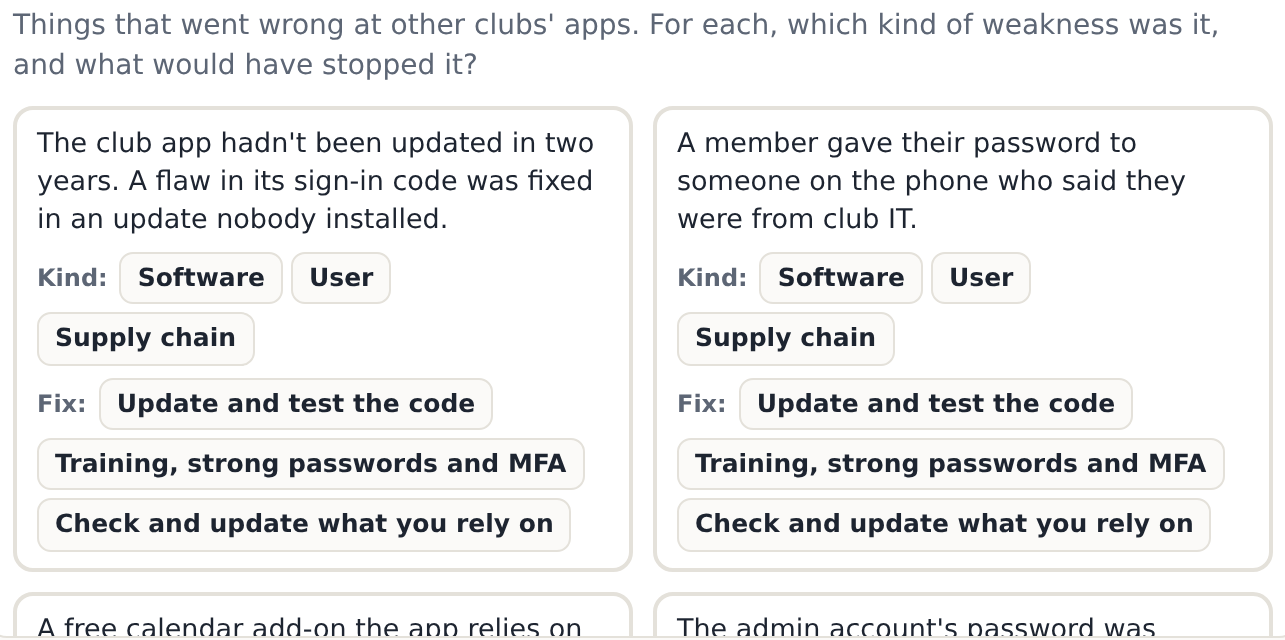
Systems have three kinds of weakness:

  • Software: a flaw in the app's own code. Fix: test it and install updates.
  • User: what people do (weak or shared passwords, being tricked). Fix: training, strong passwords, MFA.
  • Supply chain: something the app relies on goes bad. Fix: check and update what you rely on.

Perfect code alone doesn't make a system safe.

Six incidents at other clubs' apps, each to sort into software, user or supply chain, with the fix that would have stopped it.
Where was the weakness? · Sound on for the voiceover
Open the lesson →

7. The Australian Privacy Principles

Try firstName two Australian Privacy Principles and what each requires.

Check your answer

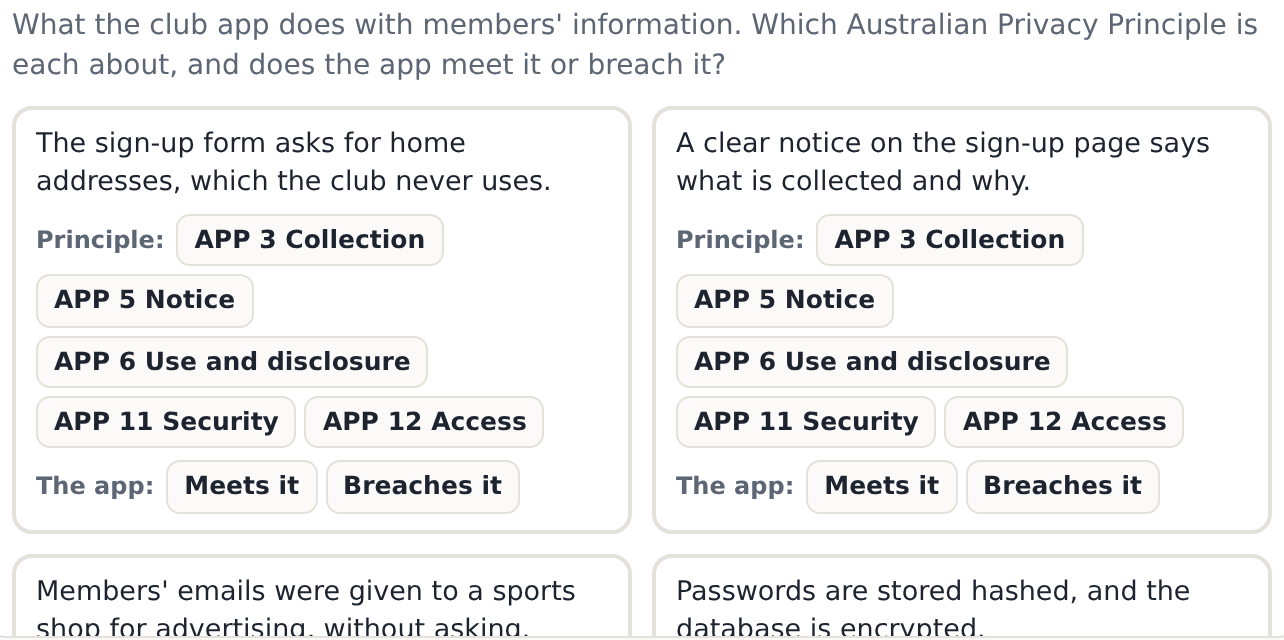
Any two: APP 3 collect only what is needed; APP 5 tell people what and why; APP 6 use and share only for that purpose unless they agree; APP 11 keep it secure; APP 12 let people see it.

The Australian Privacy Principles say what organisations must do with personal information:

  • APP 3: collect only what you need.
  • APP 5: tell people what, why and who to ask.
  • APP 6: use and share it only for that purpose, unless they agree.
  • APP 11: keep it secure.
  • APP 12: let people see what you hold.

A privacy policy doesn't override them.

Five things the club app does with members' information, each to match to a principle and judge: meets it or breaches it.
Which principle? · Sound on for the voiceover
Open the lesson →

Security review

8. Security review

Try firstPick one weakness from the review: what was it, what fixed it, and why did one of the wrong fixes fall short?

Check your answer

For example: passwords stored as typed; store salted hashes; renaming the column still leaves every password readable.

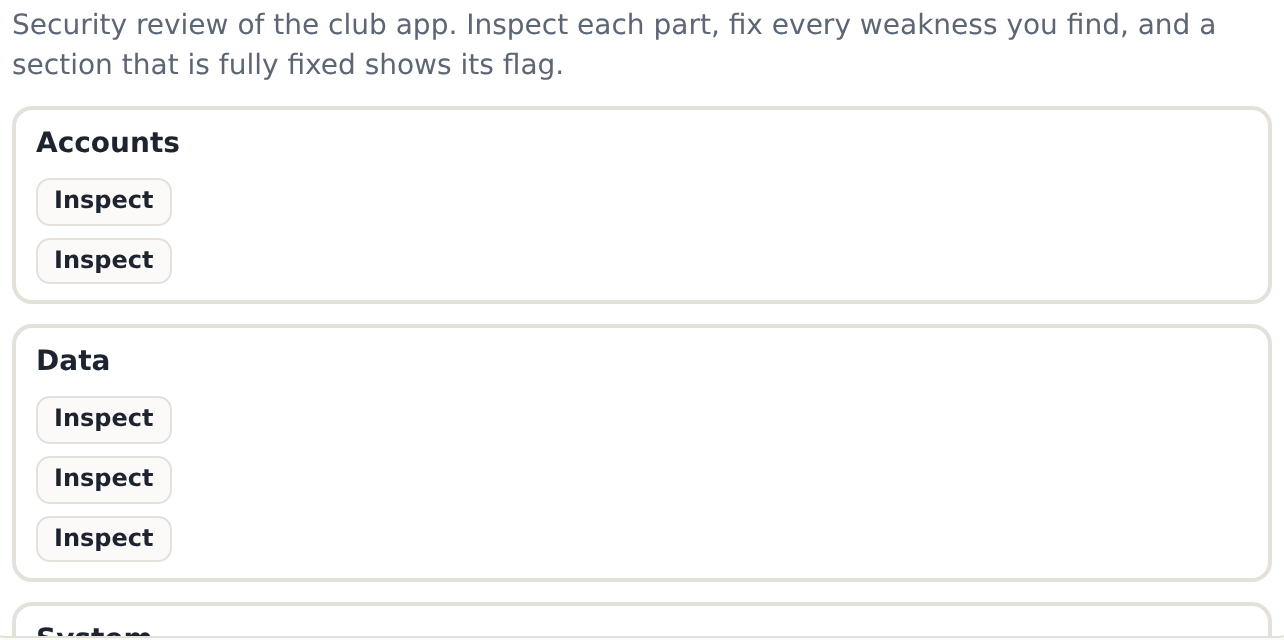
A security review checks a system before launch:

  • Accounts: unique passphrases and MFA.
  • Data: collect only what's needed, hash passwords, tell people what and why.
  • System: HTTPS on the way, and updates from the real source.

Choose each fix by what it actually stops.

The security review: three sections of the club app (Accounts, Data, System), each with weaknesses to inspect and fix.
Inspect, then fix · Sound on for the voiceover
Open the lesson →