Show a picture for every word in a list
Type a few words and see a picture for each one: as a grid, or one at a time like a slideshow.
Choose one above to see the steps.
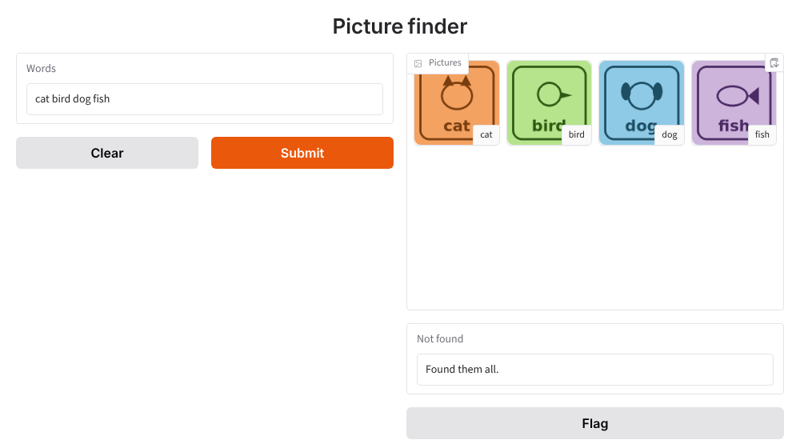
Maybe your app already shows one picture when you type one word. Now you want a whole lot of words, with a picture for each. That's what this page builds:
You'll need an app made with gr.Interface (Your first app), and a for loop. The switch at the top shows the code for however you've learnt to store things.
Get your pictures ready
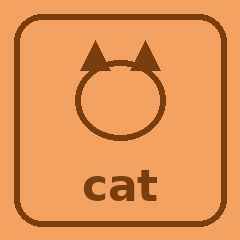
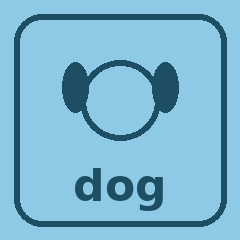
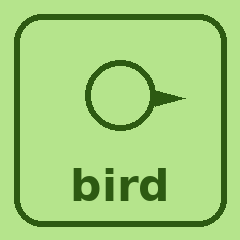
Make a folder called images next to your program, and put your pictures in it. Don't have any yet? Use these four while you get it working: cat.png, dog.png, bird.png, fish.png. Swap in your own later.

Find one picture
Start small: a function that takes one word and hands back its picture. If there's no picture for that word, it hands back None, which is Python's way of saying "nothing here".
Two lists, kept in the same order, so names[2] goes with pictures[2]:
import gradio as gr

names = ["cat", "dog", "bird", "fish"]
pictures = ["images/cat.png", "images/dog.png", "images/bird.png", "images/fish.png"]

def find_picture(word):
    if word in names:
        return pictures[names.index(word)]
    return None
word in names asks "is this word in the list?". names.index(word) tells you where it is, and that same spot in pictures is its picture.
A dictionary pairs each word with its picture, so you can look one up by name:
import gradio as gr

pictures = {
    "cat": "images/cat.png",
    "dog": "images/dog.png",
    "bird": "images/bird.png",
    "fish": "images/fish.png",
}

def find_picture(word):
    if word in pictures:
        return pictures[word]
    return None
word in pictures asks "does the dictionary have this word?". If it does, pictures[word] is its picture.
Each animal is an object that knows its own name and picture. The function checks them one by one until a name matches:
import gradio as gr

class Animal:
    def __init__(self, name, picture):
        self.name = name
        self.picture = picture

animals = [
    Animal("cat", "images/cat.png"),
    Animal("dog", "images/dog.png"),
    Animal("bird", "images/bird.png"),
    Animal("fish", "images/fish.png"),
]

def find_picture(word):
    for animal in animals:
        if animal.name == word:
            return animal.picture
    return None
If you've seen @dataclass, it can write __init__ for you. This works just the same without it.
Check it before you go on. Add print(find_picture("cat")) at the bottom and run it: you should see images/cat.png. Try "unicorn" too: you should see None. Once both work, take the prints out.
Now do every word
.split() breaks "cat bird dog" into a list of words: ["cat", "bird", "dog"]. Putting .lower() first means Cat and cat count as the same word. Then your loop looks up each one and keeps the pictures it finds:
def show_pictures(text):
    found = []
    for word in text.lower().split():
        picture = find_picture(word)
        if picture is not None:
            found.append(picture)
    return found
Show them all
A gr.Gallery shows a whole list of pictures at once, so make it your output:
demo = gr.Interface(
    fn=show_pictures,
    inputs=gr.Textbox(label="Words", placeholder="cat bird dog"),
    outputs=gr.Gallery(label="Pictures", columns=4),
    title="Picture finder",
)

demo.launch()
Run it and type cat bird dog: you should see three pictures side by side. columns=4 is how many fit across before it starts a new row.
Put each word under its picture
The Gallery can show a caption if you give it the picture and the word together, as a pair in round brackets. Change the append line in your loop:
found.append((picture, word))
Run it again: each picture now has its word underneath. Watch the double brackets: the inside pair is what makes the picture and word travel together.
Say which words had no picture
At the moment a word with no picture just disappears, which is confusing. Keep a second list of the misses, and send back a message about them too:
def show_pictures(text):
    found = []
    missing = []
    for word in text.lower().split():
        picture = find_picture(word)
        if picture is None:
            missing.append(word)
        else:
            found.append((picture, word))
    if missing:
        message = "No picture for: " + ", ".join(missing)
    else:
        message = "Found them all."
    return found, message
Your function now hands back two things, so your app needs two outputs, in the same order:
    outputs=[
        gr.Gallery(label="Pictures", columns=4),
        gr.Textbox(label="Not found"),
    ],
Try cat unicorn dog: you should see two pictures, and "No picture for: unicorn" underneath. ", ".join(missing) turns the list of misses into one line of text with commas between. You don't need to know how it works to use it.
One at a time, like a slideshow
Would one big picture at a time suit your app better? Add two settings to the Gallery:
gr.Gallery(label="Pictures", preview=True, selected_index=0),
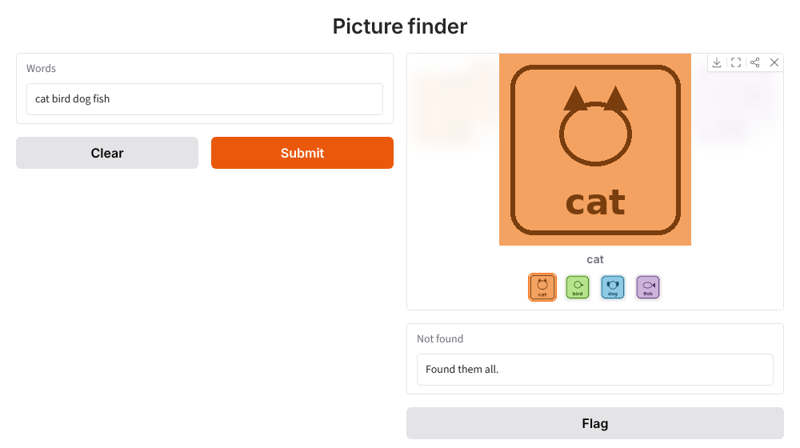
Now the first picture opens big, with the rest underneath to click through. Take the two settings out again to go back to the grid.
Show the full code
import gradio as gr

names = ["cat", "dog", "bird", "fish"]
pictures = ["images/cat.png", "images/dog.png", "images/bird.png", "images/fish.png"]

def find_picture(word):
    if word in names:
        return pictures[names.index(word)]
    return None


def show_pictures(text):
    found = []
    missing = []
    for word in text.lower().split():
        picture = find_picture(word)
        if picture is None:
            missing.append(word)
        else:
            found.append((picture, word))
    if missing:
        message = "No picture for: " + ", ".join(missing)
    else:
        message = "Found them all."
    return found, message


demo = gr.Interface(
    fn=show_pictures,
    inputs=gr.Textbox(label="Words", placeholder="cat bird dog"),
    outputs=[
        gr.Gallery(label="Pictures", columns=4),
        gr.Textbox(label="Not found"),
    ],
    title="Picture finder",
)

demo.launch()
Show the full code
import gradio as gr

pictures = {
    "cat": "images/cat.png",
    "dog": "images/dog.png",
    "bird": "images/bird.png",
    "fish": "images/fish.png",
}

def find_picture(word):
    if word in pictures:
        return pictures[word]
    return None


def show_pictures(text):
    found = []
    missing = []
    for word in text.lower().split():
        picture = find_picture(word)
        if picture is None:
            missing.append(word)
        else:
            found.append((picture, word))
    if missing:
        message = "No picture for: " + ", ".join(missing)
    else:
        message = "Found them all."
    return found, message


demo = gr.Interface(
    fn=show_pictures,
    inputs=gr.Textbox(label="Words", placeholder="cat bird dog"),
    outputs=[
        gr.Gallery(label="Pictures", columns=4),
        gr.Textbox(label="Not found"),
    ],
    title="Picture finder",
)

demo.launch()
Show the full code
import gradio as gr

class Animal:
    def __init__(self, name, picture):
        self.name = name
        self.picture = picture

animals = [
    Animal("cat", "images/cat.png"),
    Animal("dog", "images/dog.png"),
    Animal("bird", "images/bird.png"),
    Animal("fish", "images/fish.png"),
]

def find_picture(word):
    for animal in animals:
        if animal.name == word:
            return animal.picture
    return None


def show_pictures(text):
    found = []
    missing = []
    for word in text.lower().split():
        picture = find_picture(word)
        if picture is None:
            missing.append(word)
        else:
            found.append((picture, word))
    if missing:
        message = "No picture for: " + ", ".join(missing)
    else:
        message = "Found them all."
    return found, message


demo = gr.Interface(
    fn=show_pictures,
    inputs=gr.Textbox(label="Words", placeholder="cat bird dog"),
    outputs=[
        gr.Gallery(label="Pictures", columns=4),
        gr.Textbox(label="Not found"),
    ],
    title="Picture finder",
)

demo.launch()
Make it yours
- Spelling a word, letter by letter? Loop over the letters instead:
for letter in word:, with a picture for each letter. The word shows up as a row of pictures, in order. - Want each picture only once? Before you
append, check it isn't already there:if (picture, word) not in found:. - Your own pictures: any
.png,.jpgor.gifin yourimagesfolder works. Add each one where you keep your others. - Bigger or smaller grid? Change
columns, or switch to the slideshow. - Want a heading and a few words above your app? See Add a starting page to your Gradio app.
When it goes wrong
- A word shows up, but its picture is blank. There's no error message: the word was found, but not its picture file. Check the
imagesfolder is next to your program, and the file name matches exactly, including.pngand any capital letters. Run your program from that same folder. - Every word says "No picture for…". Your names probably have a capital letter or a space in them, like
"Cat ". The words you type are made lower case, so keep your names lower case with no spaces. - The pictures show but there are no words under them. Check the double brackets:
found.append((picture, word)). - "ValueError: too many values" or the message lands in the wrong box. Your function sends back two things, so
outputsneeds two parts, Gallery first, then the Textbox. - The wrong picture shows up (lists version). Your two lists are out of step. Count along both: each name and its picture should be at the same position.
For teachers
Which version to send. Send ?for=lists to students who know lists but not dictionaries (Python Foundations), ?for=dict after the Gradio quiz lesson, and ?for=class after the optional class lesson. With no ?for=, the page opens on dictionaries. Only "Find one picture" and the full code change; everything else is the same for all three. Switching between them is a good conversation about why dictionaries suit lookups: parallel lists work, but break quietly when they fall out of step.
What this is. A recipe for a project, not a lesson: nothing is checked or recorded. Each step says what the student should see when they run it; the full code is folded at the end.
Adapting it. The same shape fits any project that turns a list of things into pictures: words, letters (spelling a word), ingredients, a sequence of moves. The four test pictures are simple drawings made for this page, free to use.
Common sticking points.
- Picture paths: the program must run from the folder that holds
images. - Testing
find_pictureon its own first saves a lot of confusion later; encourage it. - The
(picture, word)pair and returning two things both need a moment of explanation. - Written and tested with Gradio 6.31 on 3 Nov 2026 (grid, captions, the Not found box and the slideshow). These run on the student's computer (
pip install gradio, thenpython app.py), not in the course's in-browser stand-in.